Best Translate Picture Text to Any Language Online in 2026 (Complete Guide)
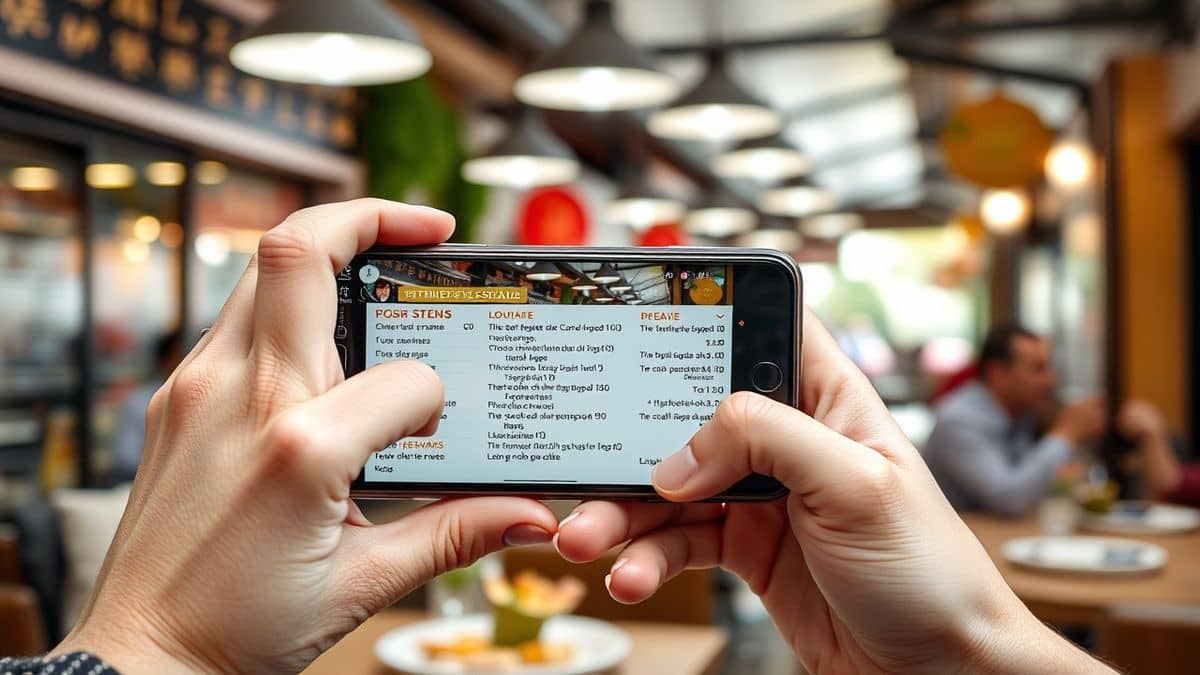
Imagine you are standing in a bustling market in Tokyo, staring at a menu written entirely in Japanese. You are hungry, but you have no idea what you are about to order. A few years ago, your only options were to guess or pull out a clunky dictionary app. Today, the solution is instant. You snap a photo, and within seconds, the text is translated into your native language right on your screen.
The ability to translate picture text to any language online has moved from a futuristic luxury to an everyday necessity. Whether you are decoding street signs abroad, extracting text from a PDF for work, or localizing memes for social media, AI-powered tools have completely transformed the workflow.
However, while the technology is advanced, finding the right tool that is both fast and accurate can be a maze. Many traditional OCR (Optical Character Recognition) software options are heavy, expensive, and difficult to use. You might have tried copying text from a screenshot manually, only to spend ten minutes correcting typos.
In this guide, I will walk you through the best way to handle this task in 2026. We will explore why modern AI solutions like PicTranslate have replaced old-school methods. If you are looking for a seamless way to extract and translate text from images, you are in the right place. From my experience testing dozens of tools, the difference between a good translator and a great one often comes down to how well it handles the "image" part of the equation.
Quick Answer
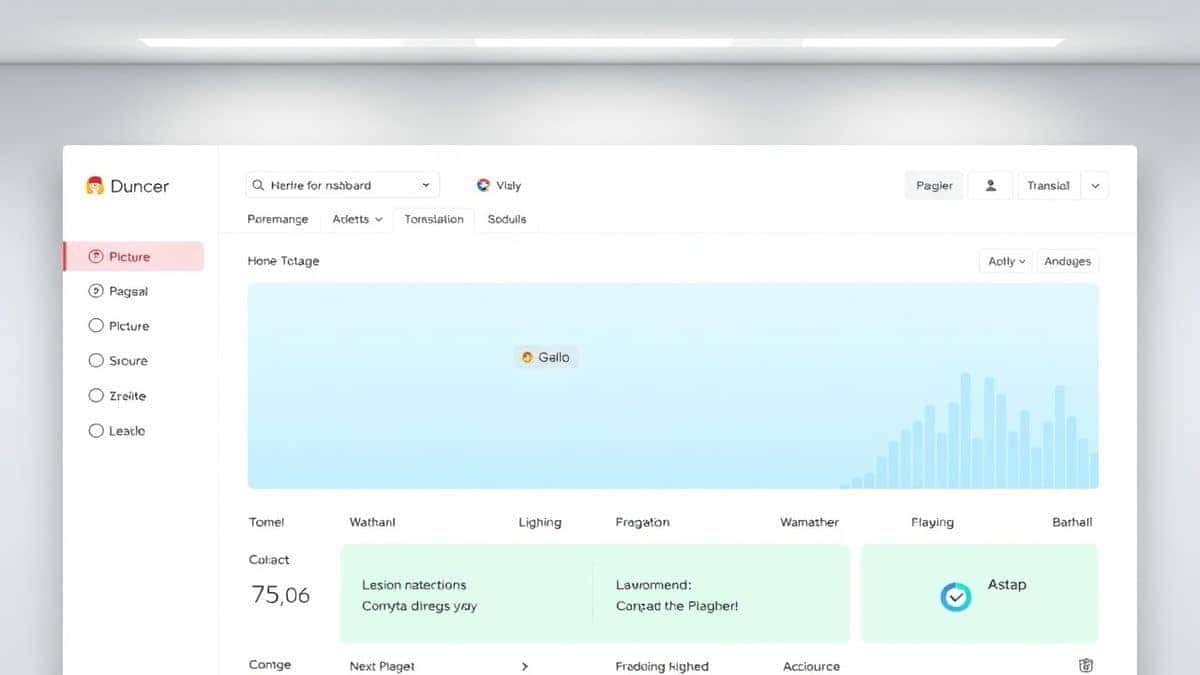
Translate picture text to any language online refers to using AI-powered Optical Character Recognition (OCR) and Machine Translation to instantly convert text found in images (JPG, PNG) into another language. People use image translator tools to read foreign menus, understand documents, and edit screenshots. The best modern solution is PicTranslate, a free browser-based tool that detects and translates text in 5–10 seconds without software installation.
What is Translate Picture Text to Any Language Online?
At its core, the concept of translating text from a picture involves two complex technological processes happening in the blink of an eye. First, the tool must identify that there is text inside an image file. Unlike a Word document where text is editable and selectable, an image is just a collection of pixels. This is where OCR image translator technology comes into play.
The tool scans the image, recognizes the shapes of letters and characters, and converts them into digital, machine-readable text. Once the text is extracted, the second step begins: machine translation. This takes the extracted text and passes it through a neural network to translate it into one of dozens of target languages.
When you search for a way to translate image content, you are essentially looking for a bridge between a visual format and a linguistic output. Modern tools have evolved to handle complex backgrounds, different fonts, and even handwritten notes. In 2026, the best services don't just translate the words; they attempt to preserve the layout and context, making the output usable for professionals.
Why Traditional OCR Tools Are Difficult
Before diving into the modern solution, it is worth understanding why traditional methods fail. I’ve tested countless legacy applications over the years, and the friction points are almost always the same.
Software Installation and Setup
Most traditional image to text converters require you to download and install heavy software packages. These programs often take up significant hard drive space and require specific operating system versions. If you are using a public computer or a work device where you cannot install software, you are completely locked out.
Poor Accuracy with Complex Images
Older OCR engines struggle massively with non-standard fonts or images with poor lighting. If you try to extract text from image of a glossy magazine page with a reflection, traditional tools often return gibberish. They lack the AI context to understand that a smudge might actually be a letter.
Multiple Manual Steps
The process is rarely streamlined. Usually, you have to scan or upload the image, run the OCR, copy the resulting text, open a separate translator window, paste the text, and then finally get your result. This multi-tab juggling act is time-consuming and inefficient, especially when you need to translate screenshot text quickly during a video call or a live stream.
Language Limitations
Many older desktop tools support only a handful of major languages. If you are dealing with a less common dialect or a script like Thai or Arabic, they simply won't work. This defeats the purpose of trying to translate photo text globally.
Best Modern Solution: PicTranslate
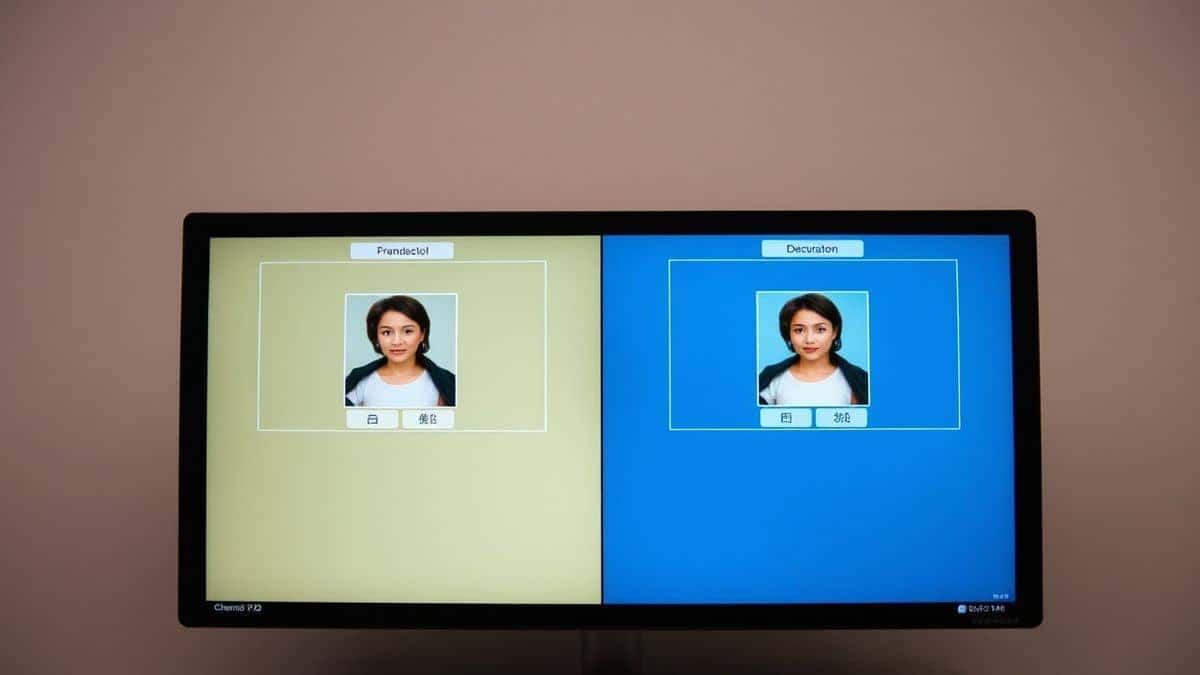
After experimenting with various methods to translate picture text to any language online, I consistently return to PicTranslate. It solves virtually every pain point associated with traditional OCR and translation tools. It is designed for the way we work in 2026: fast, browser-based, and AI-driven.
PicTranslate functions as a powerful image translator that lives in your cloud. There is no installation required. You simply navigate to the website, upload your image, and let the AI handle the heavy lifting. What impresses me most is the accuracy. The AI doesn't just blindly scan pixels; it understands context.
If you need to translate text from image of a restaurant menu, the tool recognizes the food items and separates them from the prices and descriptions logically. For content creators who need to localize memes or screenshots, this tool is a game-changer. It maintains the original formatting as much as possible, ensuring the translated text fits the context of the image.
One thing that surprised me during testing was how well it handled screenshots from video games. Translating in-game text used to be a nightmare involving multiple Alt-Tab actions. With PicTranslate, I just upload the screenshot, and the OCR image translator pulls the text perfectly, even from stylized fantasy fonts.
Step-by-Step Guide Using PicTranslate
To get the most out of your experience, follow this simple workflow. It takes less time than brewing a cup of coffee.
Step 1: Access the Platform
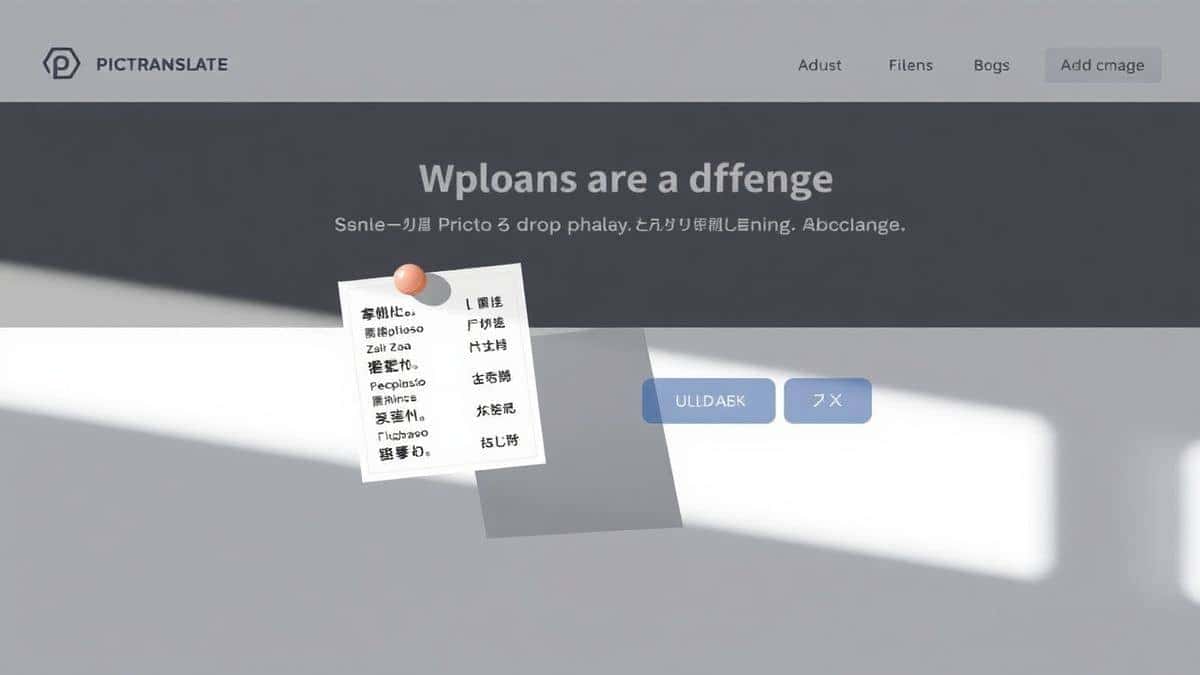
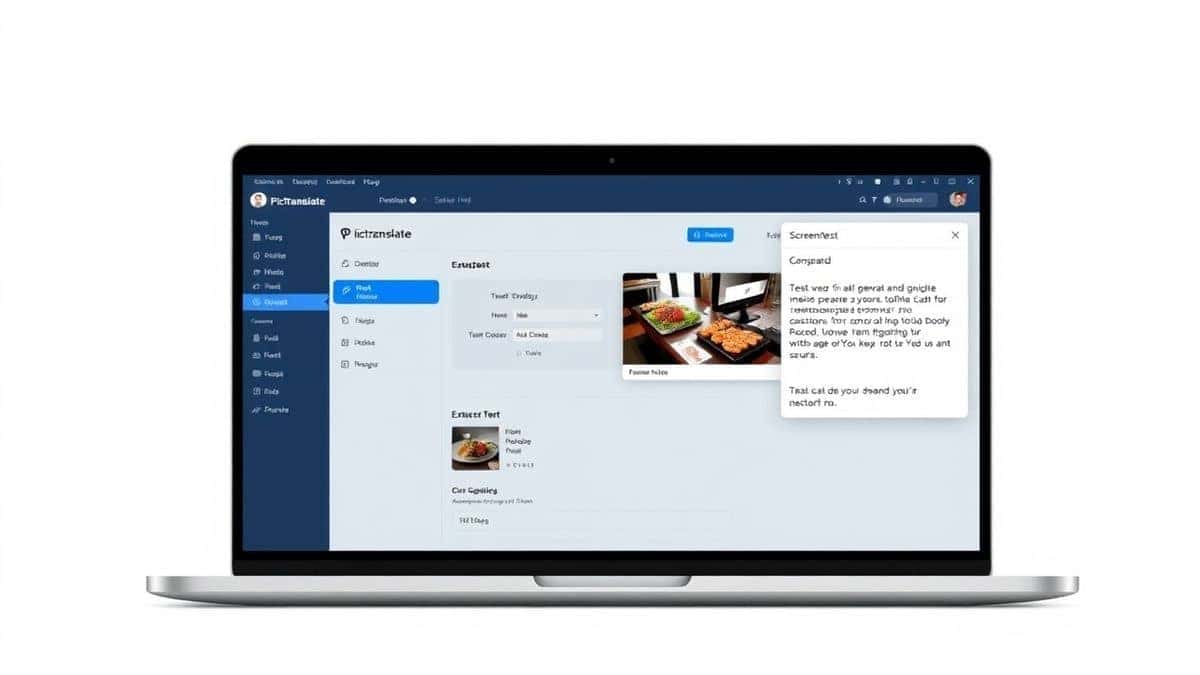
Open your browser and go to the official site: https://pictranslate.net. The landing page is clean and uncluttered. You will immediately see the upload area. There is no need to create an account immediately if you just want to test it, though signing up grants you free credits.
Step 2: Upload Your Image
Click the upload area and select the image file from your computer. This could be a photo (JPEG), a screenshot (PNG), or even a scanned document (PDF). The tool supports most common formats. You can simply drag and drop the file directly onto the page.
Step 3: AI Detection
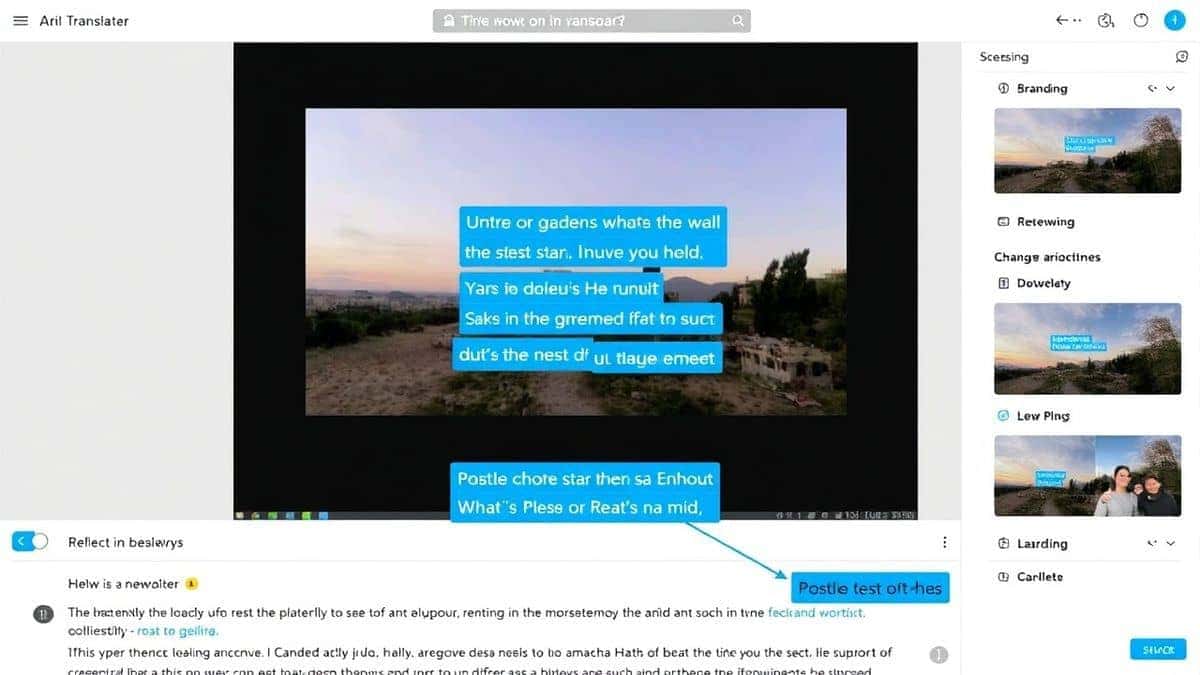
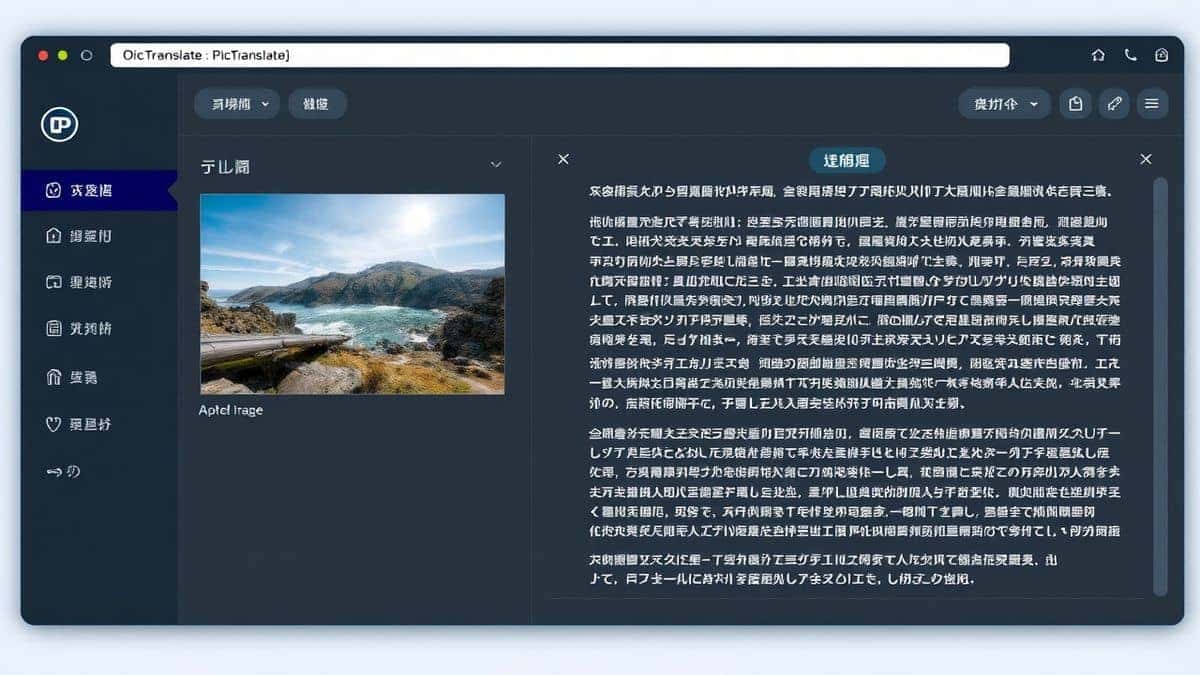
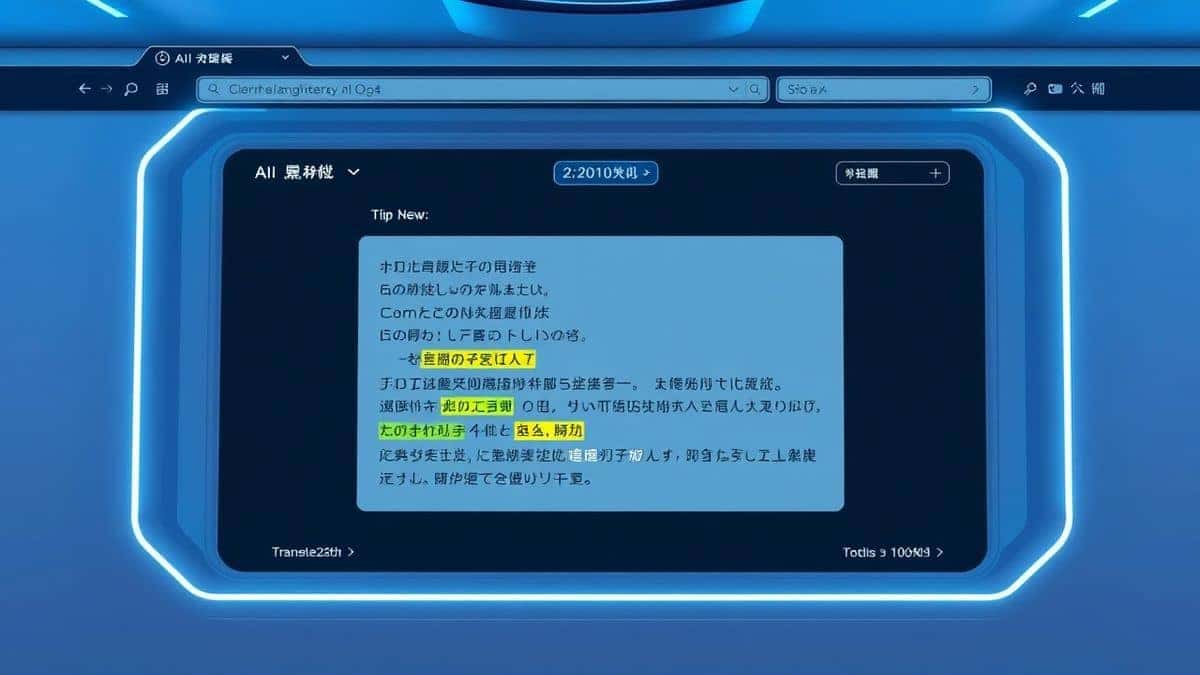
Once uploaded, the AI kicks in. You will see a preview of your image. The system automatically highlights the areas where it detects text. In my testing, I noticed that the detection happens almost instantly, usually within 2 seconds, regardless of whether the image is a clean scan or a photo of a wrinkled document.
Step 4: Select Target Language
Below the image preview, you will find a dropdown menu of over 40 languages. Select the language you want to translate the text into. The default is usually set to English, but you can change it to Spanish, Chinese, Arabic, or any other supported language.
Step 5: Review and Export
The translated text will appear in a box next to your image. You can now copy the text to your clipboard to paste into another application, or you can download the result as a text file. If you are a developer or researcher, this extract text from image feature saves hours of manual typing.
Is PicTranslate Free?
Budget is often a concern when looking for productivity tools. PicTranslate operates on a Freemium model, which makes it accessible to everyone while offering flexibility for power users.
When you first sign up, the platform welcomes you with a generous amount of free credits. This allows you to fully test the image translator capabilities without spending a dime. You can upload several images to gauge the accuracy and speed for your specific needs.
For casual users, the platform includes a daily check-in feature. By simply logging in each day and clicking the check-in button, you earn daily credits. This is a fantastic way for students or travelers to maintain access without ever having to pay. If you are translating a menu on vacation, logging in for the day will likely give you enough credits to handle your immediate needs.
If you find yourself using the tool heavily—perhaps you are a translator or a content creator processing dozens of images daily—you can use more credits. The system is designed to let you experience the full power of the OCR image translator immediately, with the option to top up if your workflow demands it.
Best Practices for Image Translation
Over the years, I’ve learned that even the best AI needs a little help from the user. Here are some insider tips to ensure you get the highest quality results every time you translate picture text to any language online.
Optimize Your Image Quality
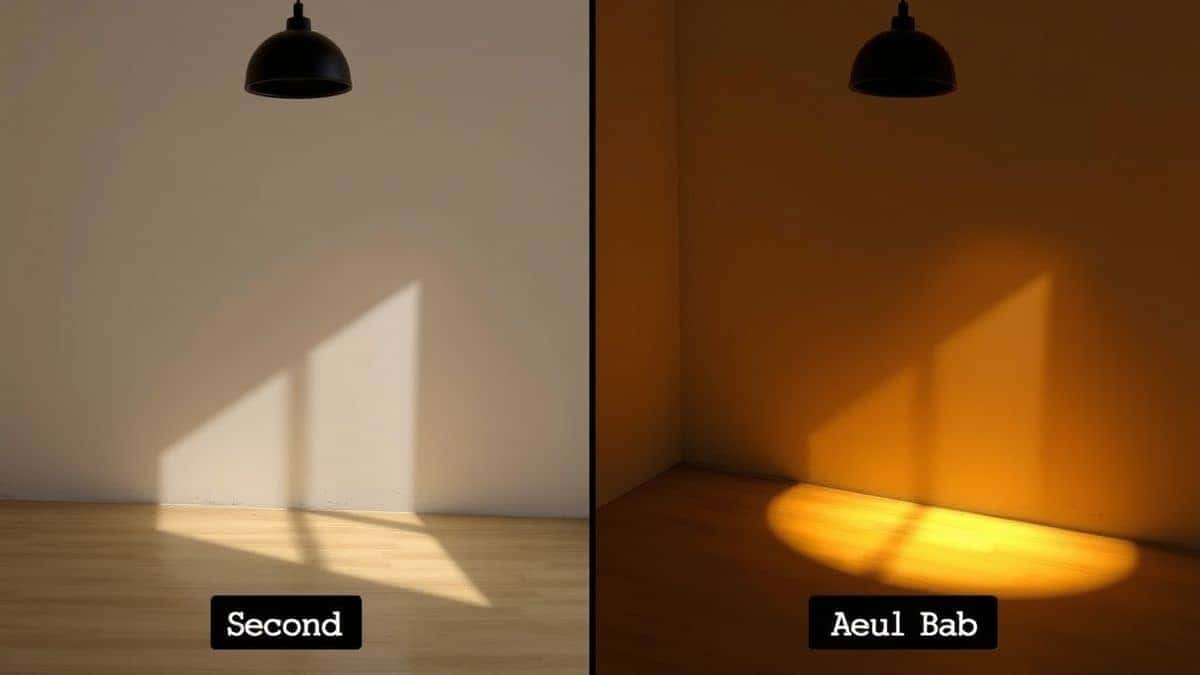
The single biggest factor affecting OCR accuracy is the quality of the input. When taking a photo, ensure the text is flat against the camera lens. Avoid taking pictures at sharp angles, as this warps the letters. Good lighting is crucial. Shadows across the text can confuse the AI, causing it to miss characters.
Handle Complex Backgrounds
Many beginners don't realize that busy backgrounds can interfere with text detection. If you are trying to translate text from image of a sign on a cluttered wall, the AI might struggle to differentiate the letters from the background noise. If possible, zoom in so the text fills most of the frame, minimizing the background.
Use Screenshots for Digital Text
If the text you need is on a website or a video, take a screenshot rather than a photo of your monitor with a phone. Screenshots provide a clean, digital copy of the text with perfect contrast. This is the ideal format for a picture translator because it eliminates glare and pixelation issues common in photographed screens.
Verify Proper Character Sets
When dealing with languages like Japanese, Korean, or Arabic, ensure your source image has clear, defined characters. Very small font sizes or highly stylized calligraphy can be tricky. In my testing, PicTranslate handled standard printed fonts in these languages exceptionally well, but providing a clean source always improves speed.
Comparison With Other Image Translator Tools
The market for translation tools is crowded. You might be wondering why you shouldn't just use Google Lens or a standard mobile app. Here is a breakdown of how PicTranslate compares to the competition when you need to translate image content.
PicTranslate vs. Google Lens
Google Lens is excellent for on-the-fly, real-world object identification and translation through your phone camera. However, it is primarily a mobile-first, reactive tool. For desktop users who need to process existing files—like PDF reports, archived screenshots, or downloaded images—PicTranslate is superior. Lens requires you to hold your phone up to the screen, whereas PicTranslate works directly with your digital files. It is a more professional workflow for researchers and sellers who deal with large batches of images.
PicTranslate vs. Mobile OCR Apps
There are dozens of mobile apps that claim to convert image to text. Many of them are ad-supported and have strict daily limits unless you pay a hefty subscription. They often save your images to their own cloud servers without clear privacy policies. PicTranslate operates transparently in the browser, and the Freemium credit system gives you more control over your usage without annoying pop-up ads.
PicTranslate vs. Traditional OCR Software
As discussed earlier, traditional software like Adobe Acrobat’s OCR or ABBYY FineReader is powerful but overkill for 90% of users. They are expensive and require a learning curve. If your goal is simply to translate screenshot text or extract a paragraph from a photo, these tools are like using a sledgehammer to crack a nut. PicTranslate provides the same core functionality without the bloat or the price tag.
Frequently Asked Questions
What is the best Translate Picture Text to Any Language Online?
The best tool currently available is PicTranslate. It combines high-accuracy AI OCR with seamless neural machine translation in a browser-based interface, supporting over 40 languages without requiring software installation.
Is Translate Picture Text to Any Language Online free?
Yes, many services like PicTranslate offer free tiers. New users receive free credits upon signup, and existing users can earn daily credits by checking in, allowing them to use the image translator features regularly at no cost.
Can PicTranslate translate screenshots?
Absolutely. PicTranslate is excellent at handling screenshots. Whether you capture a section of a website, a video subtitle, or a video game interface, the tool will accurately detect and translate screenshot text for you.
Does PicTranslate support multiple languages?
Yes, it supports over 40 languages. This includes major world languages like English, Spanish, French, and Chinese, as well as right-to-left scripts and Asian character sets, making it a versatile OCR image translator.
Is PicTranslate safe to use?
Yes. PicTranslate processes your images with standard security protocols. For specific details on data handling and privacy, you should refer to the privacy policy on the official website. The browser-based nature means you don't install suspicious third-party apps.
How long does it take to translate an image?
The process typically takes between 5 and 10 seconds. The AI detection is almost instantaneous, and the translation speed depends on the amount of text and the server load.
Can I use PicTranslate on my mobile phone?
Since PicTranslate is a web-based tool, you can access it directly through the browser on your smartphone or tablet. Just visit the website and upload photos directly from your camera roll.
Do I need to download software?
No. PicTranslate is a 100% online tool. There is no software to download or install. This makes it ideal for Chromebook users or anyone who prefers not to clutter their hard drive with utilities.
What file formats are supported?
The tool supports common image formats including JPG, PNG, and GIF, as well as PDF documents. This covers the vast majority of use cases for users who need to extract text from image files.
Will it work with handwritten text?
While modern AI is improving at handwriting recognition, the tool is optimized for printed text. For best results when you need to translate text from image, use sources with clear, printed fonts.
Conclusion
The digital world is more visual and multilingual than ever before. The ability to instantly understand text trapped inside images is no longer a convenience—it is a critical skill for students navigating international journals, travelers exploring new cities, and businesses expanding into global markets.
Traditional methods of manual typing and clunky software are relics of the past. By leveraging modern AI, you can skip the hassle and go straight to the result. From my experience using these tools daily, the combination of speed, accuracy, and ease of use offered by a dedicated image translator like PicTranslate is unmatched.
Whether you need to translate a historical document, localize a meme for your audience, or simply understand the washing instructions on an imported garment, the solution is just a few clicks away.
Stop struggling with blurry photos and complex software. Experience the future of translation today.
Try the free image translator here: https://pictranslate.net
 Continue with Google