Best Extract Text From Book Photos in 2026 (Complete Guide)
We have all been there. You are reading a physical book, and you come across a powerful quote you want to save. Or perhaps you are a student with a pile of textbooks, needing to digitize paragraphs for your research paper. In the past, this meant typing everything out manually—a process that is slow, frustrating, and prone to errors.
For years, the solution was complex OCR (Optical Character Recognition) software. These programs promised to convert images of text into editable formats, but they often delivered more headaches than help. They required heavy installations, struggled with different fonts, and if you needed the text in another language, you were stuck copying and pasting between multiple tools. It was a workflow nightmare.
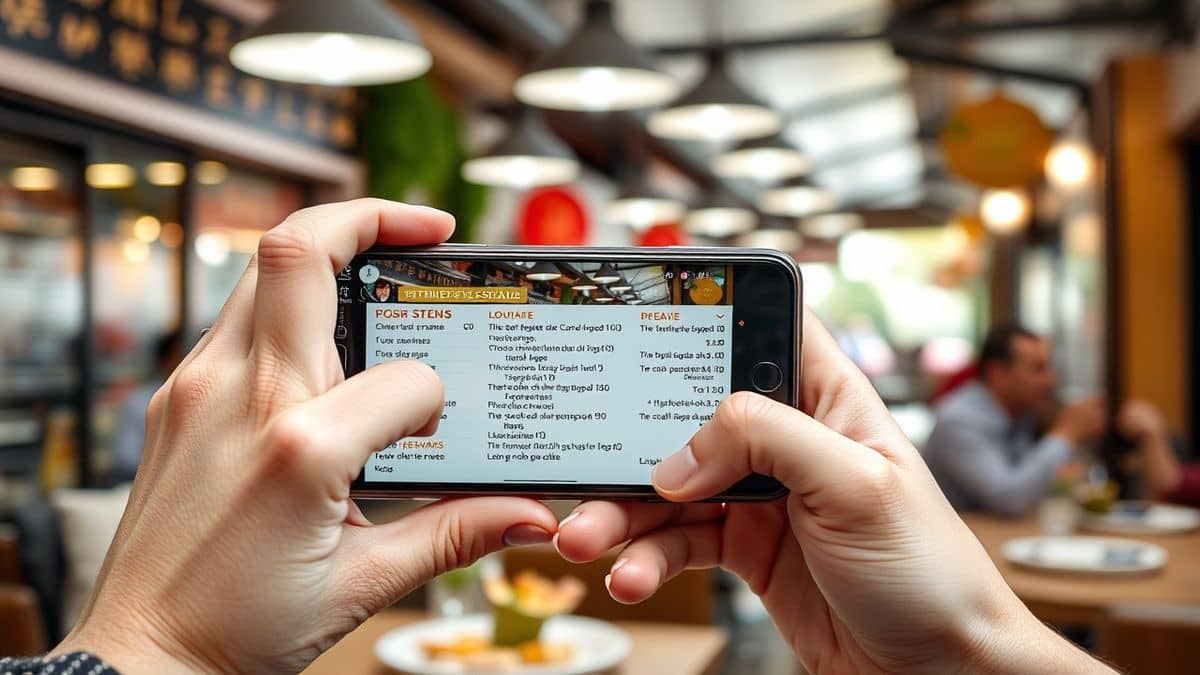
Today, however, the landscape has changed. The rise of AI-powered tools has revolutionized how we handle text. Specifically, the emergence of the AI image translator has made extracting and translating text from book photos instant and effortless. Whether you need to extract text from image for a project or quickly translate text from image from a foreign menu, modern technology puts a powerful solution in your browser.
In this guide, I will walk you through the best way to extract text from book photos in 2026. We will explore why old methods fail and how a tool like PicTranslate provides a seamless, free, and accurate alternative.
Quick Answer
Extract Text From Book Photos means using Optical Character Recognition (OCR) technology to convert text within a book image into editable, digital text. People need this to digitize notes, translate foreign language books, or repurpose quotes. The best modern solution is PicTranslate, an AI-powered online tool that performs this task in under 10 seconds for free.
What is Extract Text From Book Photos?
At its core, to extract text from book photos is the process of converting a visual representation of text—like a JPEG or PNG photo of a page—into machine-encoded text. This is made possible by OCR image translator technology.
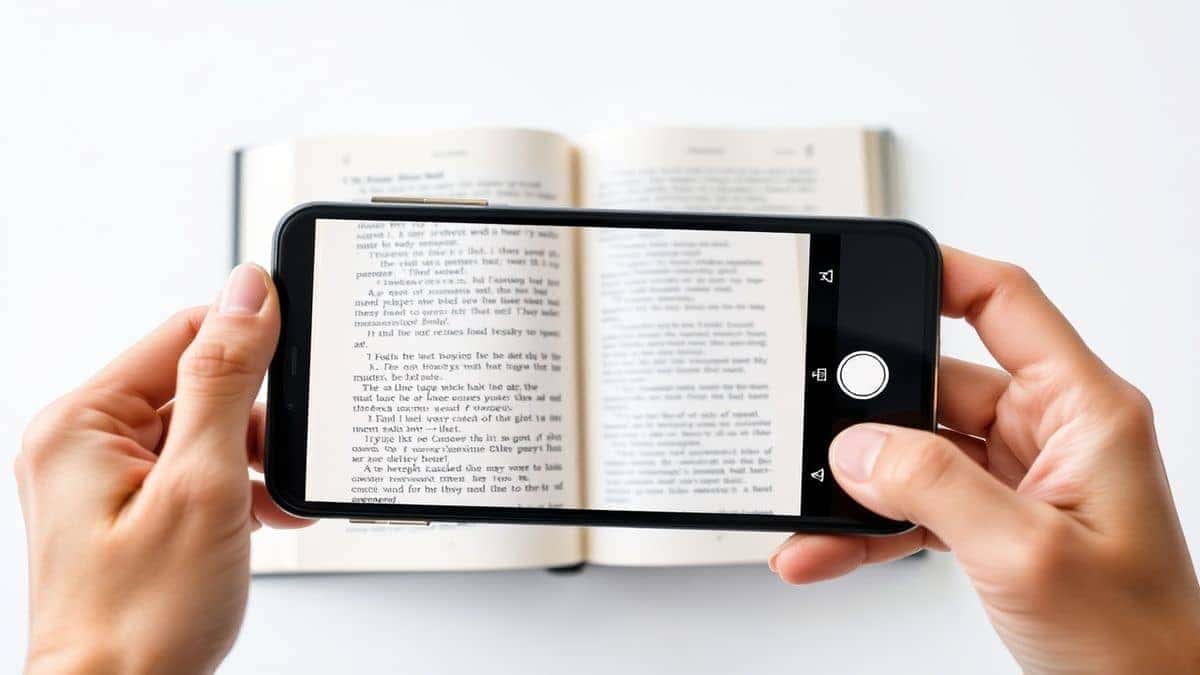
Think of it like this: when you take a photo of a book page, your camera sees shapes and shadows. OCR software analyzes these shapes, recognizes them as letters and words, and reconstructs them into a text file you can edit, copy, or search.
However, the modern need goes beyond simple digitization. We live in a globalized world. A student in New York might need to translate image content from a French academic journal. A traveler in Tokyo might need to understand a sign by using a picture translator. Therefore, the ability to extract text from image is now almost always paired with the need to translate it. This combination is what makes a tool like PicTranslate so essential. It handles the heavy lifting of AI detection and linguistic conversion in one fluid motion.
Why Traditional OCR Tools Are Difficult
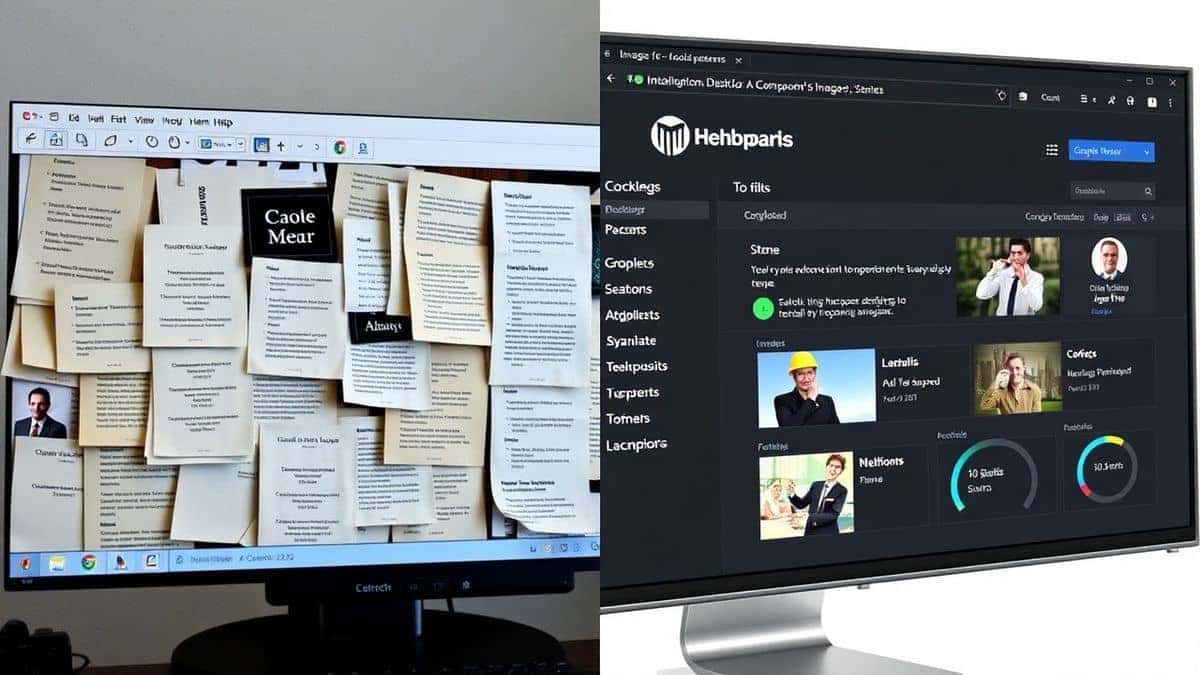
Before we dive into the best solution, it is important to understand why the old way of doing things was so painful. From my experience using OCR tools over the last decade, I can tell you that the "traditional" methods came with significant friction.
1. Complex Software Installation
Legacy OCR software often required large downloads and complicated installations. You had to worry about system compatibility, hard drive space, and license keys. If you just needed to quickly translate screenshot text for work, waiting 20 minutes for software to install was a non-starter.
2. Poor Accuracy with Real-World Images
Many older tools were designed for high-resolution, perfectly flat scans. When I experimented with different screenshots and photos of slightly curved book pages or glossy magazine covers, these tools frequently failed. They would misread fonts, ignore text shadows, or completely miss words, forcing me to manually correct the output.
3. The Disconnected Workflow
Perhaps the biggest hurdle was the multi-step process. First, you had to use one program to convert image to text. Then, you had to copy that text, open a separate translator (like Google Translate), paste it, and finally get your result. For anyone needing to frequently translate text from image, this back-and-forth was a massive waste of time.
4. High Costs
Professional OCR suites were, and often still are, expensive. They required one-time purchases or hefty subscriptions, making them inaccessible for casual users, students, or anyone who only needed to extract text from book photos occasionally.
Best Modern Solution: PicTranslate
After testing dozens of different tools, I can confidently say that PicTranslate represents the new standard for this technology. It eliminates every single pain point associated with traditional OCR and translation. It is the most efficient OCR image translator I have used to date.
Here is why PicTranslate stands out as the best way to extract text from book photos:
- AI-Powered OCR Detection: PicTranslate uses advanced AI to detect text, not just simple pattern matching. One thing that surprised me was how well it handles difficult backgrounds, different fonts, and even handwritten notes.
- Instant Translation: It is not just an image to text tool; it is a true image translator. Once the text is extracted, the AI automatically translates it into your chosen language from a list of over 40 options.
- 100% Browser-Based: There is no software to install. The entire process happens online. This makes it perfect for Chromebooks, public computers, or anyone who values convenience.
- Speed: The promise of a 5–10 second turnaround is real. You can translate image content faster than you could type a single sentence.
- Versatility: It works perfectly for books, but also for screenshots, menus, documents, and even manga. It is a true all-in-one picture translator.
Step-by-Step Guide Using PicTranslate
Using PicTranslate to extract text from book photos is incredibly straightforward. The interface is designed for speed and simplicity. Here is exactly how to do it.
Step 1: Visit the Website
Open your browser and go to the PicTranslate tool at https://pictranslate.net. You are greeted with a clean, simple upload area.
Step 2: Upload Your Image
Click the upload area or drag and drop your book photo directly into the browser. The tool accepts common formats like JPG and PNG. For best results, ensure the text in your photo is relatively straight and well-lit.
Step 3: AI Text Detection
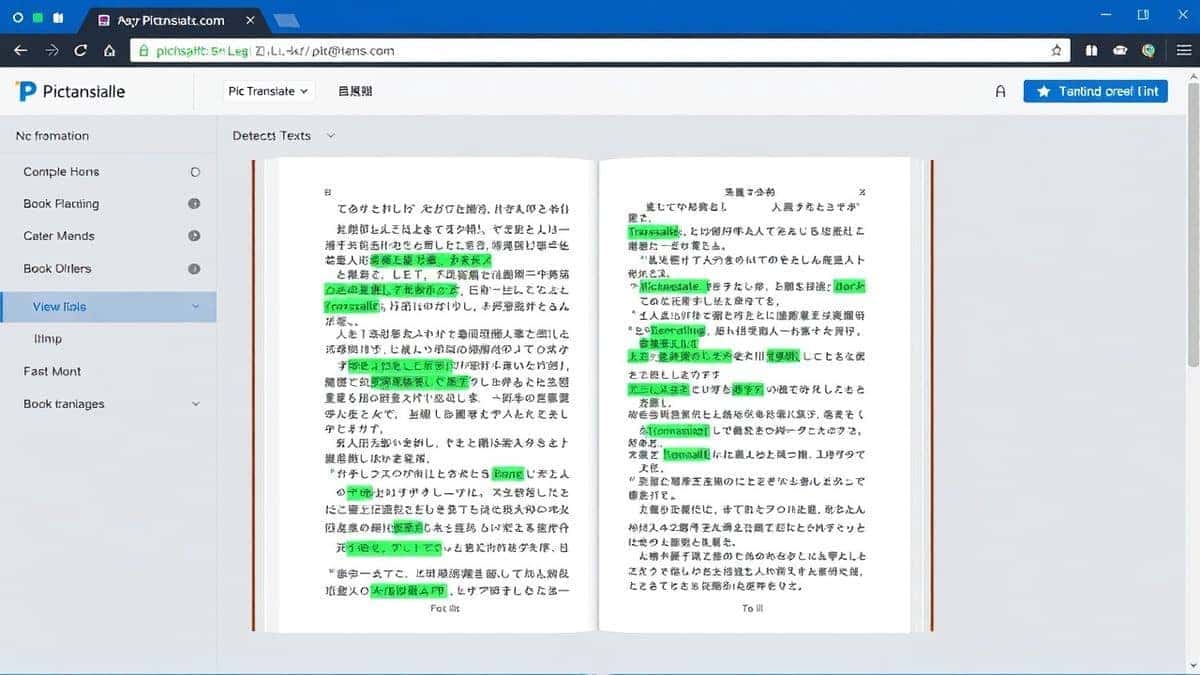
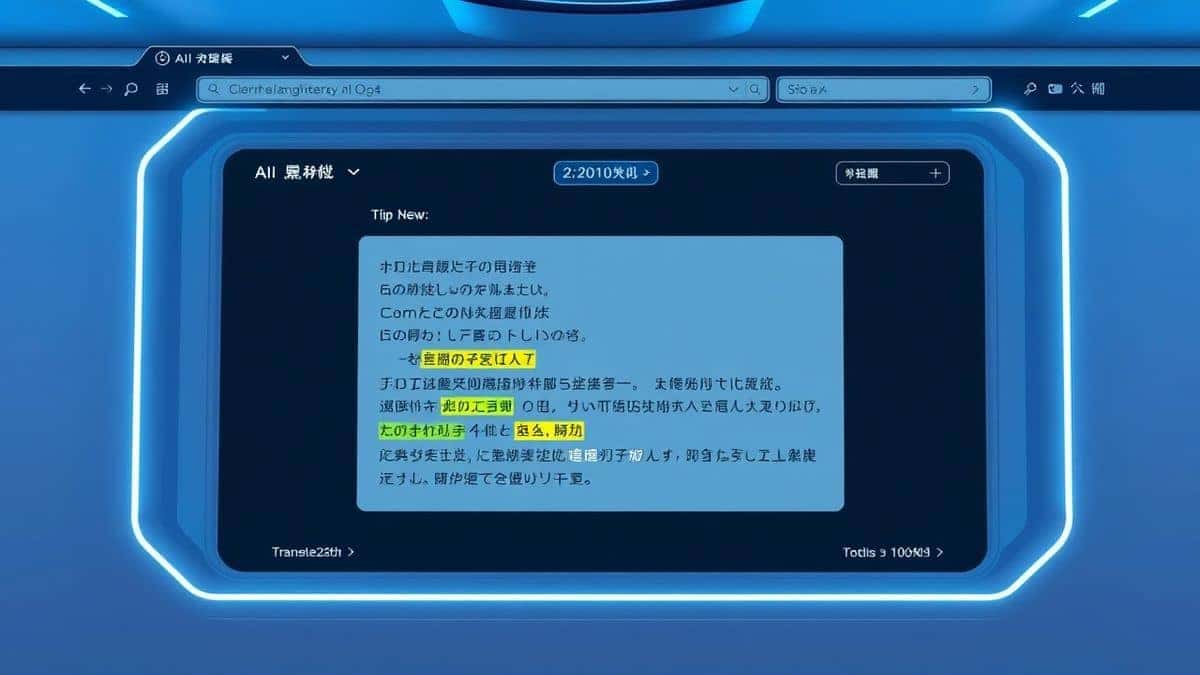
Once uploaded, the magic begins. The AI automatically scans the image. In my testing, I noticed that the detection overlay is incredibly fast, highlighting the text it recognizes in real-time. You do not need to select a "scan area" or adjust any complex settings.
Step 4: Select Your Language
The source language is usually detected automatically, but you can manually select it if needed. Then, choose the target language you want to translate image text into from the dropdown menu.
Step 5: Copy or Download Your Result
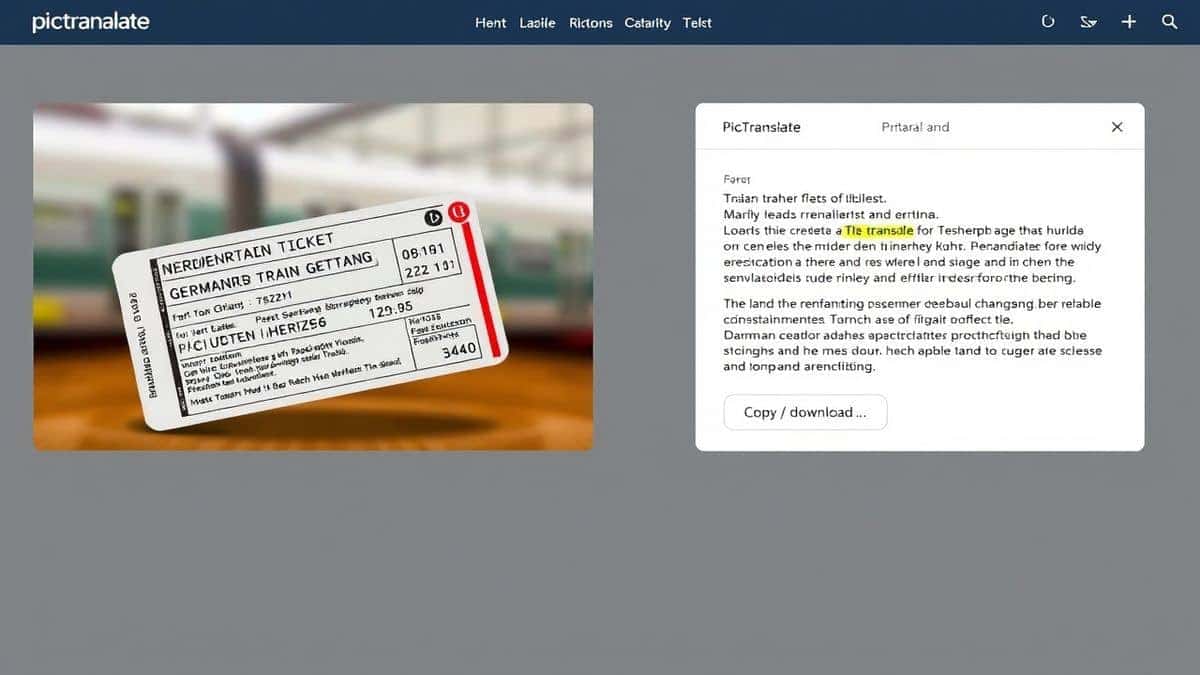
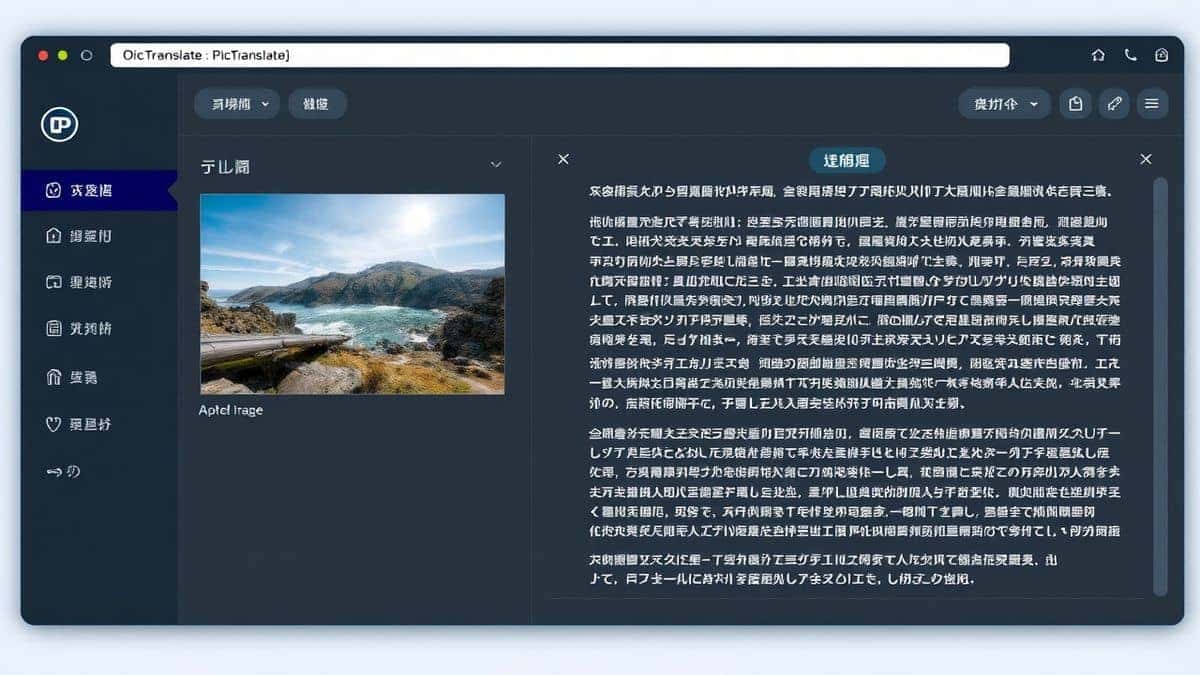
In seconds, the translated text appears in a box next to your original image. You can now copy it to your clipboard to paste into a document, or download it as a text file. The entire process to extract text from book photos and translate it is complete.
Is PicTranslate Free?
One of the most common questions I get is about cost. PicTranslate operates on a user-friendly Freemium model, which is perfect for anyone who needs to extract text from book photos occasionally or wants to test the service.
- Free Credits for New Users: When you first sign up, you receive a generous amount of free credits. This allows you to fully experience the power of the AI image translator without spending a dime.
- Daily Login Rewards: A unique feature I really appreciate is the daily credit system. By simply checking in each day, you can earn daily credits. This is fantastic for students or researchers who need to digitize a few pages every day.
- Try Before You Buy: The free credits give you ample opportunity to test the accuracy of the image to text conversion and translation. You can see for yourself how well it handles your specific book photos.
- More Usage, More Credits: For power users who need to process hundreds of pages, additional credits are available. However, for the average user, the free and daily credits are often more than enough.
Best Practices for Image Translation
To get the best results when you extract text from book photos, a little preparation goes a long way. From my experience using OCR tools, following these tips will drastically improve your accuracy.
1. Lighting is Everything
OCR works by detecting contrast. If your book photo is taken in a dark room with harsh shadows, the AI will struggle to distinguish letters. Try to take your photos in natural, even light. Avoid using a flash directly on glossy pages as it creates glare.
2. Keep the Camera Steady
Blurry images are the enemy of text extraction. When photographing a book page, hold your phone steady. If you have a steady hand, great. If not, resting your phone on the book or a table can make a huge difference. A sharp image leads to a perfect extract text from image result.
3. Mind the Curve
Books, especially thick ones, have a natural curve near the spine. When you take a photo, try to flatten the book gently (without breaking the spine!) to minimize this curve. The AI in PicTranslate is good, but perfectly flat text yields the best results.
4. Use the Right Tool for Screenshots
Many beginners don't realize that the same principles apply to digital text. If you need to translate screenshot text from a PDF or a website, make sure the screenshot captures only the text area. Cropping out unnecessary UI elements helps the OCR image translator focus on the words.
5. Check the Source Language
While PicTranslate is excellent at auto-detection, if you are working with a bilingual book or a specific dialect, manually setting the source language can sometimes improve accuracy. One trick professionals use is to double-check this setting for optimal performance.
Comparison With Other Image Translator Tools
How does PicTranslate stack up against other popular methods to extract text from book photos? I have tested them all, and here is my honest comparison.
PicTranslate vs. Google Lens
Google Lens is a powerful tool, but it is often tied to the Google ecosystem. It is great for quick lookups on your phone. However, for serious work where you need to copy, paste, and edit large amounts of text, PicTranslate is superior. PicTranslate provides a dedicated web interface for desktop workflows, making it easier to manage your extracted text. It is designed purely as an image translator, not a multi-purpose search tool.
PicTranslate vs. Mobile OCR Apps
There are hundreds of "Scan to Text" apps in the App Store and Play Store. Many are riddled with ads or have aggressive subscription models. Some also require creating an account before you can even test them. PicTranslate’s browser-based approach means you can use it on any device, including a desktop, without being locked into a mobile app ecosystem. Plus, the free credits offer a risk-free way to test quality, which most mobile apps do not.
PicTranslate vs. Traditional OCR Software (like Adobe Acrobat Pro)
Software like Adobe Acrobat Pro has robust OCR capabilities, but it is expensive and often overkill for simple tasks. It is designed for enterprise document management. If you just need to extract text from book photos for a research paper or to translate a few pages, paying a monthly fee for Acrobat is not economical. PicTranslate focuses on the core task—image to text and translation—and does it exceptionally well without the bloat.
Frequently Asked Questions
What is the best Extract Text From Book Photos tool?
Based on my testing, the best tool in 2026 is PicTranslate. It combines high-accuracy AI OCR with instant translation in a free, easy-to-use web interface.
Is Extract Text From Book Photos free?
Yes, with tools like PicTranslate. You can start with free credits and earn more through daily logins, allowing you to digitize and translate image content without any initial cost.
Can PicTranslate translate screenshots?
Absolutely. PicTranslate is an excellent image translator for screenshots. Simply upload your screenshot, and the tool will translate screenshot text instantly, just as it does with book photos.
Does PicTranslate support multiple languages?
Yes, it supports over 40 languages. You can translate text from image in languages ranging from English and Spanish to Japanese, Arabic, and many more.
Is PicTranslate safe to use?
Yes, privacy is important. PicTranslate processes your images to extract text, but you should always review the privacy policy on their website for specific details regarding data handling.
Can I use PicTranslate on my phone?
Yes, because PicTranslate is a web-based tool, you can access it through the browser on your iPhone or Android phone. It works perfectly for mobile users who need to extract text from book photos on the go.
What image formats does PicTranslate support?
PicTranslate supports common formats like JPG and PNG, which cover the vast majority of book photos and screenshots.
How accurate is the text extraction?
The AI-powered image to text conversion is highly accurate, especially when following best practices like using clear, well-lit images. It handles complex fonts better than traditional OCR software.
Can I edit the text after extraction?
Yes. Once PicTranslate extracts and translates the text, it is presented in an editable text box. You can make any changes you need before copying or downloading it.
What if I need to translate a whole book?
PicTranslate is perfect for translating sections, quotes, or chapters. For large volumes, you can use your credits to process pages one by one, making it a flexible solution for any project.
Conclusion
The ability to quickly and accurately extract text from book photos has moved from a niche technical skill to a necessity for students, travelers, and professionals alike. The days of struggling with complex software or manually retyping pages are over. AI has transformed this process, making it accessible to everyone.
PicTranslate stands at the forefront of this change. It is not just an OCR image translator; it is a complete solution that bridges the gap between the physical and digital worlds of text. It respects your time by delivering results in seconds and respects your budget with its generous freemium model.
If you have a stack of books to digitize, a foreign menu to decipher, or a screenshot full of important text, stop wasting time. Experience the power of modern AI for yourself.
Try the free image translator here: https://pictranslate.net
Start converting and translating your images today.
 Continue with Google