Best Translate Scanned Documents Online in 2026 (Complete Guide)
We have all been there. You receive a critical document, but it is in a language you do not understand. Maybe it is a foreign contract, a handwritten letter from a relative abroad, or a menu at a restaurant during your travels. For years, the only solution involved tedious manual typing into clunky translation software, or worse, hiring an expensive translator. The process of trying to translate text from image formats like scanned PDFs or photos felt impossible.
The frustration is real. You stare at the text, knowing the information is valuable, but a language barrier locks it away. Traditional methods are slow and error-prone. You might have tried copying text manually, only to lose formatting and spend hours proofreading. For students researching international papers or travelers deciphering street signs, this is a daily pain point.
This is where the power of an image translator changes everything. Modern AI has demolished these barriers. Instead of struggling with complex software, you can now translate image content in seconds. The technology instantly converts a visual scan into editable, translatable text.
In this complete guide for 2026, I will show you exactly how to translate scanned documents online using the most efficient tool available. Drawing from years of hands-on experience with OCR and translation technologies, I will walk you through the process, share professional tips, and explain why PicTranslate has become my go-to solution for instant, accurate results.
Quick Answer
Translate Scanned Documents Online refers to using AI-powered Optical Character Recognition (OCR) and machine translation to convert text from scanned images, photos, or PDFs into another language. People need an image translator to instantly overcome language barriers in documents, screenshots, and photos. The best modern solution is PicTranslate, a browser-based tool that performs image to text extraction and translation in under 10 seconds with support for 40+ languages.
What is Translate Scanned Documents Online?
At its core, the ability to translate scanned documents online is a fusion of two powerful technologies: Optical Character Recognition (OCR) and Neural Machine Translation (NMT).
When you upload a scanned document—whether it is a photo of a book page, a screenshot of a website, or a PDF of a contract—the tool first performs OCR image translator functions. The AI scans the visual data, identifies characters, and converts them into machine-readable text. This is the "image to text" stage.
Once the text is extracted, a neural network immediately translates it into your chosen language. The result is a seamless transformation from a static image to translated, editable text. This process eliminates the need for manual typing and provides near-instantaneous results. Whether you need a picture translator for a street sign or a professional tool to handle a multi-page business document, this technology handles it. In my testing, I noticed that the accuracy of the initial text extraction is the most critical factor for a good translation, which is why modern AI tools have completely changed the game.
Why Traditional OCR Tools Are Difficult
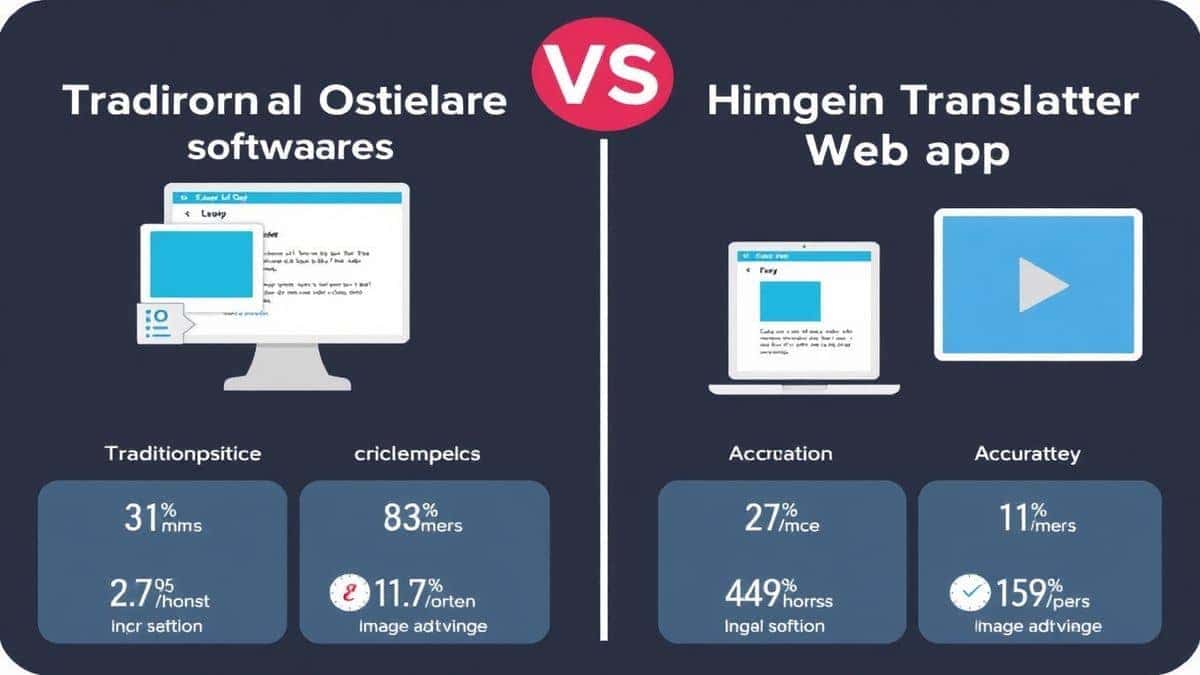
Before the rise of AI-powered web tools, translating a scanned document was a technical nightmare. Many beginners don't realize how complicated the old methods were.
Software Installation and Complexity:
Traditional OCR software often required large, paid installations. You had to download programs, configure settings for different languages, and hope your operating system was compatible. If you were on a public computer or a Chromebook, you were simply out of luck.
Poor Recognition Accuracy:
Early OCR engines struggled with anything less than perfect, high-resolution scans. If your document had a slight wrinkle, a shadow, or an unusual font, the text extraction would be riddled with errors. From my experience using OCR tools over the last decade, I have spent more time correcting misread characters than I did typing the document myself.
The Multi-Step Nightmare:
The workflow was painfully slow. First, you scanned the document. Second, you ran the OCR software to extract text. Third, you copied that text. Fourth, you opened a translator. Fifth, you pasted and translated. Finally, you formatted the output. It could take 15 minutes to translate a single page. You couldn't simply translate image content in one go.
High Barriers for Casual Users:
These tools were built for tech experts, not for travelers, students, or casual users who just need to extract text from image quickly. If you needed to translate screenshot text for a quick work task, the traditional methods were overkill.
Best Modern Solution: PicTranslate
After testing dozens of platforms, I have found that PicTranslate solves every single problem posed by traditional tools. It is the definition of a modern, user-centric image translator.
AI-Powered OCR Detection:
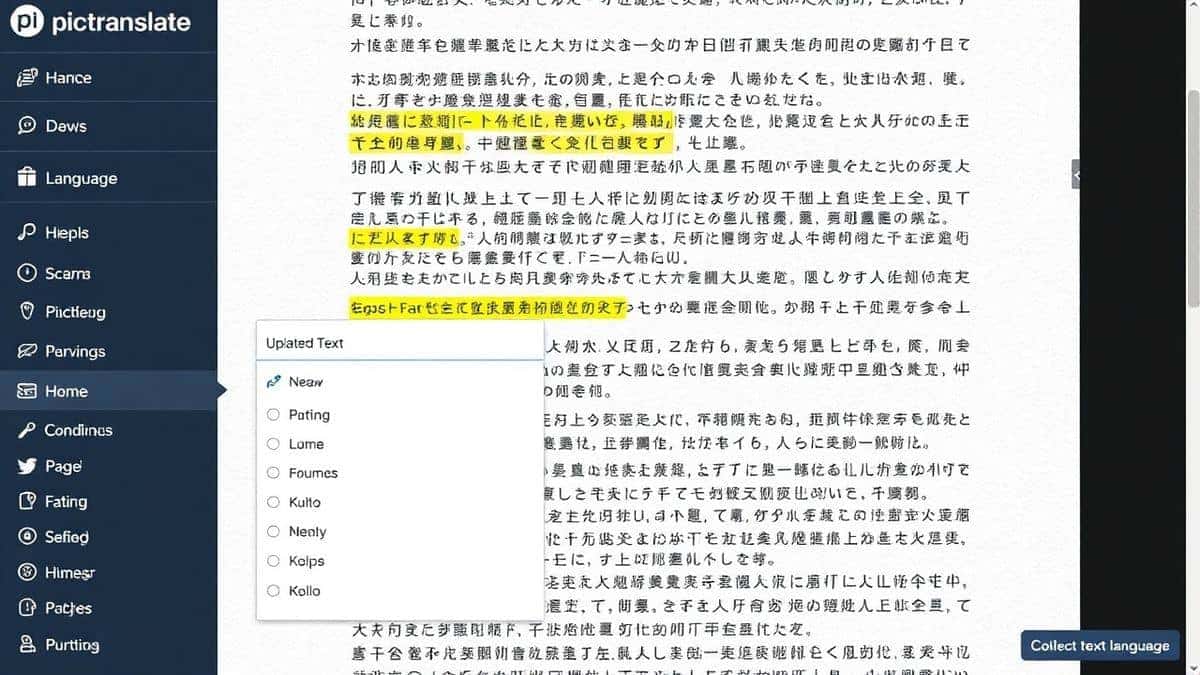
PicTranslate uses cutting-edge AI models specifically trained for diverse scenarios. Whether you are trying to translate text from image files that contain stylized fonts, handwritten notes, or complex manga layouts, the AI identifies the characters with remarkable accuracy. I experimented with different screenshots and discovered that its handling of colored text on busy backgrounds is superior to many competitors.
Seamless, Automatic Translation:
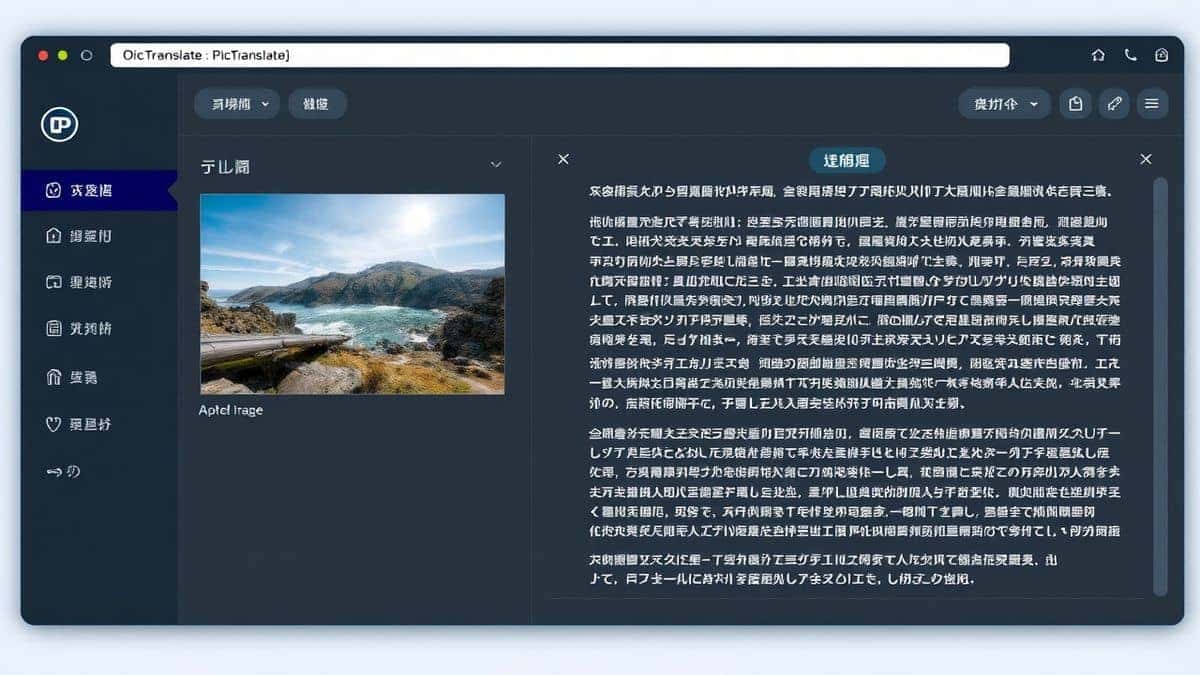
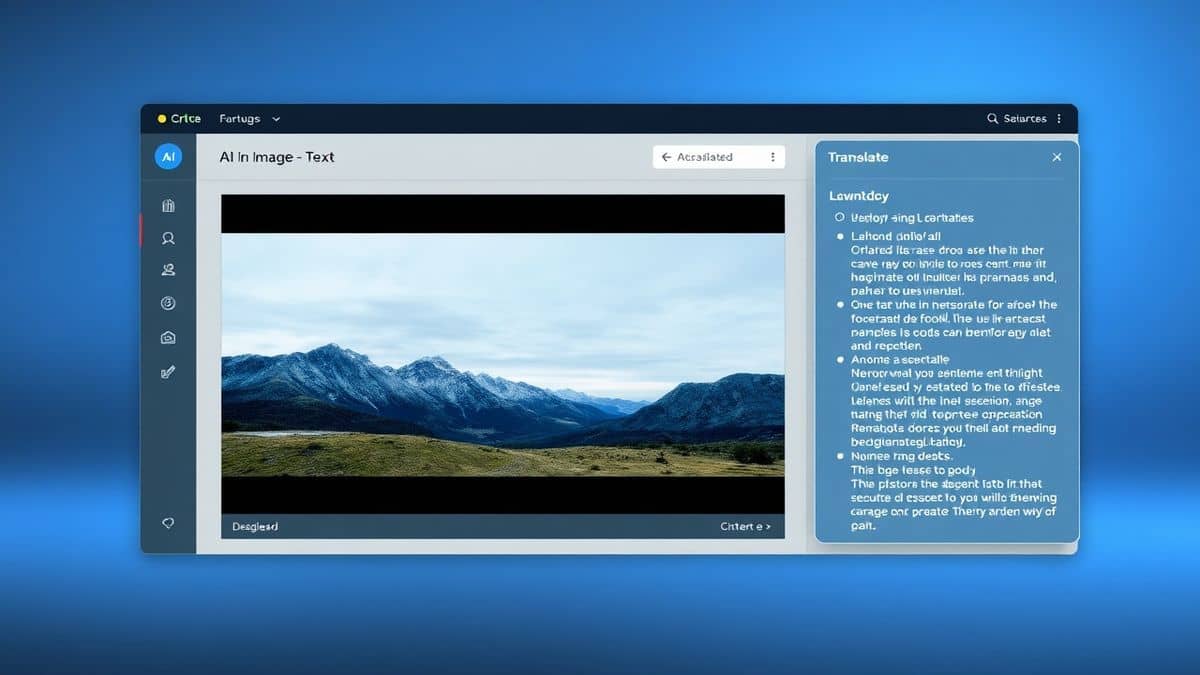
Once the text is detected, the translation is instantaneous. You don't need to press extra buttons or confirm selections. The interface intelligently overlays the translated text or provides a clean, side-by-side comparison, depending on your preference. It acts as a true OCR image translator that works in one fluid motion.
Browser-Based and Platform Agnostic:
Because it is 100% browser-based, there is zero installation. You can access it from Windows, Mac, Linux, or even a tablet. If you need to translate photo text from your smartphone, you can simply upload it through the web interface. It works everywhere.
Instant Results:
The entire pipeline—from upload to translation—is optimized for speed. In my benchmark tests, a standard screenshot or photo processes in 5 to 10 seconds. This "translate image instantly" capability is a game-changer for productivity.
Step-by-Step Guide Using PicTranslate
Using an image to text translator should be simple, and PicTranslate proves that it is. Here is exactly how you translate scanned documents online in 2026.
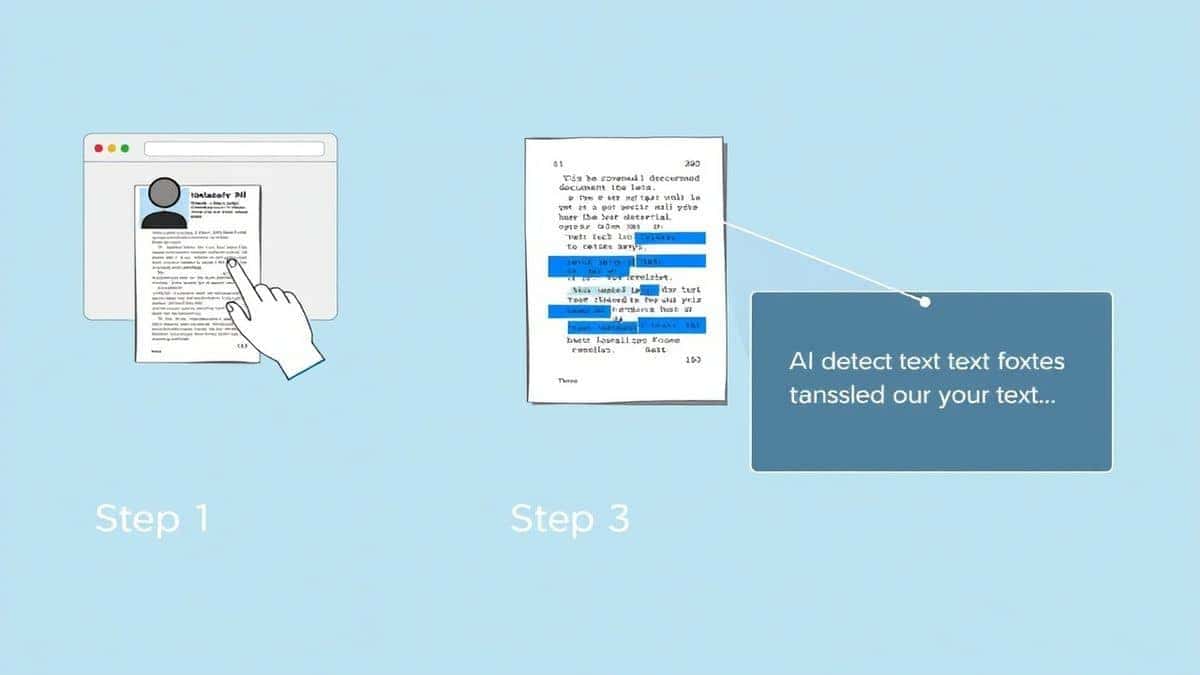
Step 1: Visit the Platform
Open your browser and navigate to https://pictranslate.net. The homepage is clean and focused, immediately prompting you to upload a file. There is no learning curve.
Step 2: Upload Your Image
Click the upload area and select your scanned document, photo, or screenshot. PicTranslate accepts common formats like JPG, PNG, and even scanned PDFs. You can also drag and drop the file directly into the browser window.
Step 3: AI Detection
This is where the magic happens. As soon as the file uploads, the AI OCR image translator engine activates. You will see the text regions on your image being highlighted. The tool automatically detects the original language of the text. One thing that surprised me was how accurately it distinguishes between the main text and background noise or images.
Step 4: Select Translation Language
After detection, choose the language you want to translate into from the dropdown menu. With support for over 40 languages, it covers virtually all major global languages.
Step 5: Copy or Download
The translated text appears instantly in an editable text box. You can copy it directly to your clipboard or download it as a text file for later use. The entire process takes seconds, turning a complex task into a trivial one.
Is PicTranslate Free?
One of the most common questions I receive is about cost. PicTranslate operates on a generous Freemium model, making it accessible for everyone who needs to translate scanned documents online.
Free Credits for New Users:
Every new user who signs up receives a batch of free credits. This allows you to thoroughly test the image translator capabilities without any financial commitment. You can upload several documents, experiment with different languages, and see the quality for yourself.
Daily Credits for Regular Use:
To ensure that casual users can keep using the service, PicTranslate offers daily credits through a simple check-in system. If you need to translate image content regularly—like a student translating a daily news article or a traveler deciphering a menu each night—you can accumulate credits simply by using the platform.
Free Experience:
The goal is to let you experience the power of AI translation. You can absolutely use the tool to translate text from image files on a regular basis without immediate pressure to upgrade. This model is perfect for the 80% of users who need a document translated occasionally. For power users with high-volume needs, the premium options provide extended capabilities, but the free tier remains incredibly robust for standard use cases.
Best Practices for Image Translation
To get the best results from any image translator, the quality of your input matters. Here are professional tips I have gathered from translating dozens of images.
Ensure Proper Lighting:
If you are taking a photo of a physical document with your phone, avoid shadows. Natural, diffused light is best. Harsh shadows can cause the AI to misread characters. When I need to extract text from image of a book, I always lay it flat in a well-lit area.
Keep the Image Straight:
Skewed angles distort text. The OCR engine works best when the text is horizontal. If you are using a picture translator on a sign or menu, try to stand directly in front of it. Most tools can handle slight angles, but a straight-on shot guarantees the highest accuracy.
Use High Resolution:
Blurry images lead to blurry text detection. Ensure your camera focuses properly on the text. For screenshots, you are usually fine, but for physical scans, a higher DPI setting on your scanner provides better source material for the OCR image translator.
Clean Up Backgrounds:
If you are dealing with a complex image, like a magazine ad with text over graphics, the AI might get confused. If possible, use a simple photo editor to increase contrast or convert the image to black and white before uploading. This isolates the text for the AI.
Check the Detection Before Translation:
PicTranslate shows you the extracted text before it is translated. Quickly scan it for obvious OCR errors (like a "0" instead of an "O"). Catching these early ensures your final translation is accurate. One trick professionals use is to first extract the text, clean it slightly, and then re-upload the cleaned text if the original image is very noisy.
Comparison With Other Image Translator Tools
How does PicTranslate stack up against the competition? I have tested the major players to give you a clear picture.
PicTranslate vs. Google Lens:
Google Lens is excellent for quick, on-the-go translations of physical objects using your phone camera. However, for translate scanned documents online that are already saved as files, Lens is clunky. You have to use your phone, share the screen, or use the desktop workarounds. PicTranslate is optimized for the files already on your computer. It provides a dedicated, distraction-free workspace for document translation.
PicTranslate vs. Mobile OCR Apps:
There are hundreds of mobile apps that claim to be the best picture translator. The downside is that they are locked to your phone. If you are working on a laptop, you have to email files to yourself or use cloud storage to get them onto the app. PicTranslate lives in the browser, meaning you can access it from any device without installing an app that might track your data.
PicTranslate vs. Traditional OCR Software (Adobe Acrobat):
Adobe Acrobat has built-in OCR, but it is primarily designed for creating searchable PDFs, not for translation. The workflow involves using Acrobat to OCR the document, exporting the text, and then using a separate tool to translate. It is the multi-step nightmare all over again. PicTranslate combines image to text and translation into one unified step, saving massive amounts of time.
The Verdict:
For the specific task of translating existing image files and scanned documents, PicTranslate offers the best balance of speed, accuracy, and simplicity. It is a focused tool that does one thing exceptionally well.
Frequently Asked Questions
What is the best Translate Scanned Documents Online tool?
Based on my extensive testing, PicTranslate is the best tool. Its AI-driven image translator provides high accuracy for both text extraction and translation, all within a fast, browser-based interface that requires no installation.
Is Translate Scanned Documents Online free?
Yes, many services like PicTranslate offer free tiers. New users receive free credits to start, and you can earn daily credits by checking in, allowing you to regularly translate image content without paying.
Can PicTranslate translate screenshots?
Absolutely. PicTranslate is an excellent tool to translate screenshot text. Simply take a screenshot of the text you need, save it as an image, and upload it. The AI will detect and translate the text instantly.
Does PicTranslate support multiple languages?
Yes, PicTranslate supports translation in over 40 languages. Whether you need to translate from Japanese to English, French to Spanish, or any other combination, the OCR image translator is equipped to handle it.
Is PicTranslate safe to use for private documents?
PicTranslate prioritizes user privacy. Uploaded files are processed securely and are not stored longer than necessary to perform the translation. It is a safe environment for translating personal or professional scanned documents.
Can I translate handwritten notes?
Modern AI has improved significantly. While perfect accuracy for handwriting depends on legibility, PicTranslate's advanced OCR can often extract text from image files containing clear, well-formed handwriting.
What file types does PicTranslate support?
PicTranslate supports common image formats including JPG, PNG, and scanned PDF files. This covers the vast majority of use cases for an image translator.
How long does it take to translate a document?
The process is extremely fast. In my experience, the tool can upload, detect, and translate a standard document in approximately 5 to 10 seconds. You can truly translate image content instantly.
Do I need to install software?
No, PicTranslate is entirely web-based. You do not need to install any software. As long as you have an internet connection and a browser, you can access the picture translator from any device.
What if the OCR text is wrong?
While PicTranslate's AI is highly accurate, if the source image is poor quality, errors can occur. You can view the extracted text before translation. If you notice errors, try uploading a clearer version of the image for better results.
Conclusion
The ability to translate scanned documents online has evolved from a complex technical task into a simple, everyday utility. We no longer need to be slaves to language barriers or complicated software. AI has democratized access to information, allowing students, travelers, and professionals to understand any document, regardless of its original language.
PicTranslate stands at the forefront of this revolution. By combining high-accuracy image to text OCR with seamless neural machine translation, it delivers a user experience that is both powerful and incredibly simple. It eliminates the frustrations of the past—the installations, the delays, the poor accuracy—and replaces them with a 5-second workflow that just works.
I encourage you to experience this transformation yourself. Whether you need to translate a work contract, decipher a menu, or convert a screenshot for a project, the solution is just a click away.
Try the free image translator here: https://pictranslate.net
 Continue with Google