Translating text inside photos used to mean retyping every word by hand. Today, an AI image translator can detect characters with OCR, translate them, and place the result back on the picture. Processing time depends on the image and current queue. If you are searching for how to translate images, this guide walks through methods, tools, and practical tips that work in real workflows.
Quick Answer
To translate images online, upload a photo or screenshot to an AI image translator, select your target language, and download the translated image. PicTranslate uses OCR plus machine translation to extract text, translate it, and preserve the original layout. The process works for menus, manga, product labels, and documents in 47+ languages.
Why Translate Text in Images?
People need image translation when text is locked inside a picture:
- Travel — restaurant menus, street signs, train tickets
- E-commerce — product packaging and listing images for global marketplaces
- Study — textbook pages, lecture slides, scanned notes
- Work — UI screenshots, infographics, client materials in foreign languages
- Entertainment — manga panels, comic speech bubbles, game screenshots
A photo translator saves time compared to manual copy-paste through separate OCR and translation apps.
Method 1: Google Translate Camera (Free, Basic)
Google Translate offers camera translation on mobile. Point your phone at text and see an overlay translation. It works well for quick travel use but has limits for professionals:
- Output is often overlay text, not a clean export-ready image
- Layout and fonts are not preserved for marketing or e-commerce
- Batch processing multiple product images is slow
- Desktop workflow is weaker than dedicated online image translator tools
For one-off signs abroad, Google is fine. For repeatable business use, a dedicated tool is more efficient.
Method 2: Dedicated AI Image Translator (Recommended)
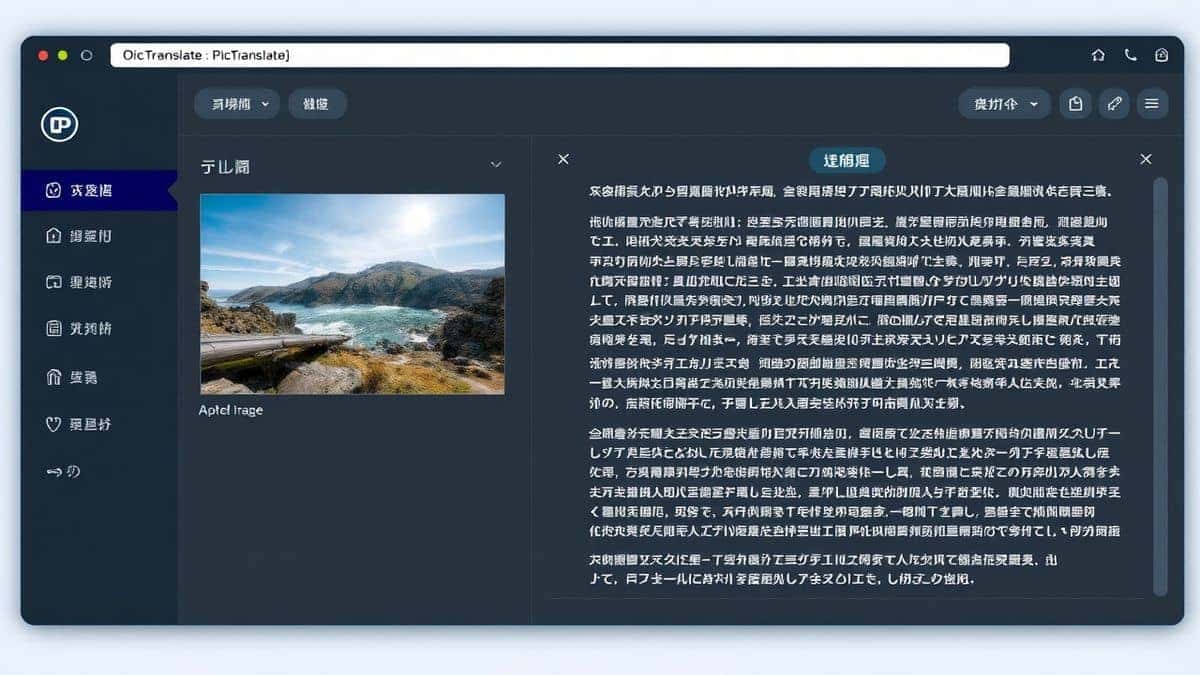
Tools like PicTranslate are built for translate text from image workflows end to end:
- Upload JPG, PNG, or WEBP (up to 4 MB)
- Auto-detect source language or pick manually
- Choose from 47+ target languages
- Download the translated image with layout preserved
Related tools on the same platform extend the workflow:
- Batch image translator — up to 20 images at once
- Manga translator — optimized for speech bubbles
- Image to text — OCR extraction without translation
- Text remover — remove text overlays from images you own or are authorized to edit
Step-by-Step: Translate an Image with PicTranslate
Step 1 — Prepare a Clear Image
Use good lighting and at least 800×600 pixels. Avoid heavy blur, glare, or low contrast. Printed text translates more accurately than messy handwriting.
Step 2 — Upload and Select Language
Open the AI image translator, drag your file into the upload area, or paste from clipboard. Pick the target language — for example Japanese to English or Chinese to Spanish.
Step 3 — Review and Download
After processing, preview the result. Copy extracted text if needed, or download the translated image. For current handling and retention details, review the privacy policy.
Tips for Better OCR Accuracy
From testing across hundreds of screenshots and scans, these habits improve results:
- Crop to the text region when the background is noisy
- Use PNG for UI screenshots; JPG is fine for photos
- For vertical Asian text (manga, signs), use a tool with vertical OCR support
- Run batch jobs for product catalogs instead of repeating single uploads
When to Use Batch vs Single Translation
| Scenario | Best approach |
|---|---|
| One menu photo while traveling | Single upload on homepage |
| 15 product images for Shopify | Batch image translator |
| Manga chapter (20 pages) | Batch or manga translator |
| Extract text only (no translation) | Image to text |
Is Online Image Translation Free?
PicTranslate offers free daily credits via check-in. Heavy users can buy one-time credit packs with lifetime validity — no subscription required. Try the free tier before purchasing.
FAQ
Can I translate a screenshot from my phone?
Yes. Save the screenshot, upload it on mobile or desktop browser. Works for iOS, Android, Windows, and Mac captures.
Does it work on handwritten notes?
Printed text works best. Handwriting, cursive, decorative fonts, glare, and low-resolution images may reduce recognition quality.
Can I publish a translated image commercially?
Review the rights to the source image, translated text, and any third-party assets before publishing. PicTranslate processes the image; it does not transfer ownership or grant rights to content you do not control.
How is this different from Google Translate?
Google focuses on quick mobile overlays. PicTranslate focuses on export-ready images, layout preservation, batch processing, and specialized manga OCR.
Start Translating Images Now
Upload a sample menu or screenshot on PicTranslate and see how fast how to translate images can be when OCR and translation run in one step.
 Continue with Google