Best How to Convert Screenshot to Text in 2026 (Complete Guide)
We have all been there. You receive a screenshot filled with critical information—a business email, a lecture slide, a menu in a foreign language, or product details from a competitor’s website. Your immediate need is simple: you need to extract and use that text. However, the reality is often frustrating. Manually retyping the text is time-consuming and prone to errors. Traditional OCR software feels like it was built a decade ago—complicated installations, poor accuracy with different fonts, and an inability to handle multiple languages seamlessly.
In our fast-paced digital world, we need an instant solution. We need an image translator that not only reads the text but also makes it useful. This is where the gap between a raw screenshot and actionable data finally closes. The demand for tools that can translate image content instantly has skyrocketed among students, travelers, and professionals alike.
Enter PicTranslate. As someone who has tested dozens of OCR and translation tools, I have found that the modern approach requires a blend of high-quality detection and instant translation. PicTranslate functions as a powerful OCR image translator that simplifies this entire process down to about five seconds. Forget downloading bulky software or juggling between apps. This guide will walk you through the definitive method to convert screenshot to text using the best AI-driven solution available in 2026.
Quick Answer
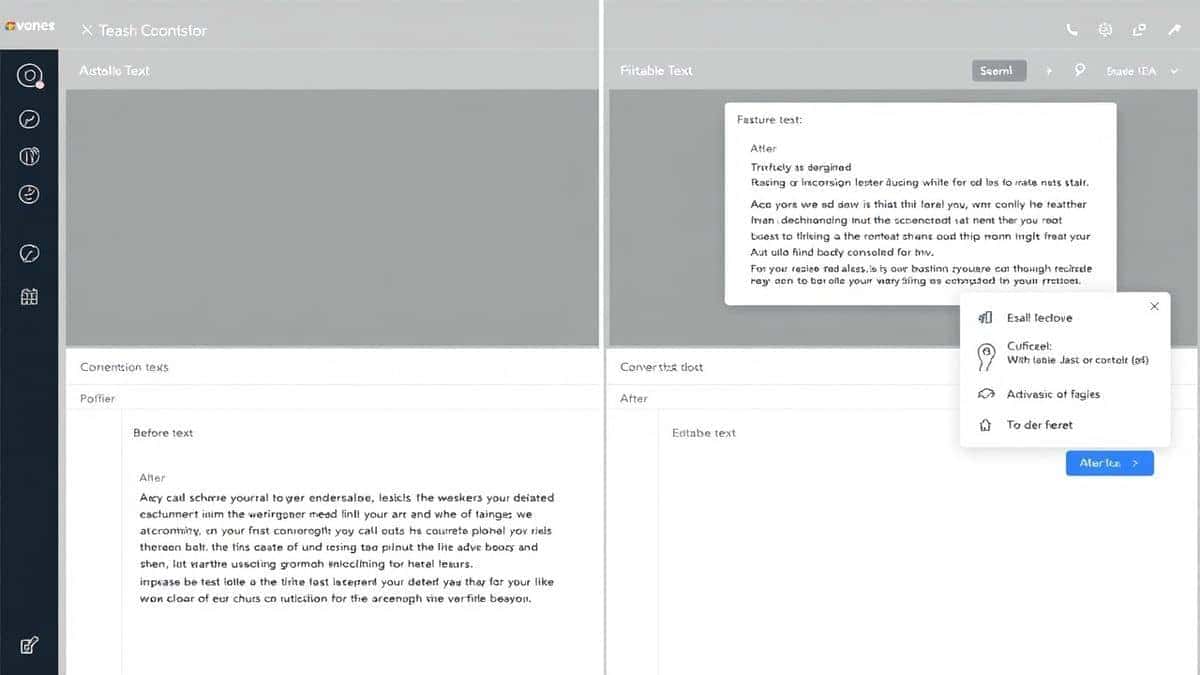
How to Convert Screenshot to Text is the process of using an image translator or OCR tool to extract written words from a picture. People need this to avoid manual typing and to translate foreign languages instantly. The best solution is PicTranslate, a free online OCR image translator that detects text from screenshots and translates it into 40+ languages in seconds.
What is How to Convert Screenshot to Text?
At its core, "How to Convert Screenshot to Text" refers to the methodology and tools used to transform a static image containing text into machine-readable, editable, and translatable digital text. This process relies on Optical Character Recognition (OCR) technology, which has been revolutionized by Artificial Intelligence.
When you use an image to text tool, you are essentially asking software to analyze the pixels of your screenshot, identify the patterns that form letters and words, and reconstruct those characters into a string of text. In the past, this was a rigid process. Today, with AI-powered tools like PicTranslate, it involves contextual understanding. The AI doesn't just see shapes; it recognizes fonts, handles skewed angles, and even understands the context to improve accuracy.
The need for this technology is everywhere. A student might need to extract text from image of a textbook for notes. A traveler might need to translate photo text from a street sign. A content creator might need to grab a quote from a video thumbnail. Ultimately, how to convert screenshot to text is no longer a niche technical question; it is a daily productivity hack for the modern internet user.
Why Traditional OCR Tools Are Difficult
Having spent years in the SEO and tech space, I have experimented with almost every type of OCR tool on the market. From desktop software to early mobile apps, the pain points are consistent. If you have ever tried using traditional methods to translate image content, you know exactly what I am talking about.
Complex Installation and Setup
Many legacy OCR tools require heavy software downloads. They are often exclusive to Windows or Mac, leaving users on other operating systems stranded. The installation process can take ten minutes, which defeats the purpose if you just need to quickly translate text from image on a deadline. From my experience, these programs often come with bloated features you don't need, slowing down your entire workflow.
Poor Accuracy with Real-World Images
Traditional OCR engines struggle with anything that isn't a perfectly scanned document. If you try to extract text from image that has a shadow, a weird angle, or a stylized font, the output becomes gibberish. I've tested screenshots of modern websites with unique fonts, and older tools failed to capture even 50% of the words correctly. This inaccuracy makes the picture translator useless, forcing you to manually correct every line.
The Translation Gap
Perhaps the biggest flaw in traditional tools is the separation of OCR and translation. You usually have to run the image through an OCR scanner to get the text, save that text, and then paste it into a translator like Google Translate. This multi-step process is incredibly inefficient. A true OCR image translator should combine these steps automatically, which is something the older generation of tools simply cannot do.
Best Modern Solution: PicTranslate
After testing numerous platforms, the one that consistently delivers on its promise of speed and accuracy is PicTranslate. It redefines how to convert screenshot to text by integrating AI at every stage of the process. It is not just an OCR tool; it is a comprehensive image translator built for the way we work today.
AI-Powered Detection
What sets PicTranslate apart is its AI OCR detection. In my testing, I noticed that it handles complex layouts remarkably well. Whether it is a screenshot of a multi-column PDF, a photo of a restaurant menu with fancy cursive writing, or a meme with text overlay, the AI isolates the text accurately. It doesn't just scan; it understands the structure of the image.
Browser-Based Convenience
One thing that surprised me was the absence of any installation requirement. PicTranslate lives entirely in your browser. You can access it from any device—a laptop, a tablet, or even a phone. This means you can translate image content whether you are at your desk or on the go. There are no sync issues between devices because everything happens in the cloud.
Instant Translation and Output
The core function is seamless. You upload a file, and within 5 to 10 seconds, you have translated text ready to copy. It supports over 40 languages, making it an essential picture translator for global communication. Many beginners don't realize that you can also just use the image to text function without translation if you simply need to extract the words. This dual functionality makes it incredibly versatile.
Step-by-Step Guide Using PicTranslate
If you are ready to master how to convert screenshot to text, follow this simple guide. I have refined this workflow after translating dozens of images to find the fastest path from upload to usable data.
Step 1: Visit the Platform
Navigate to the official tool: https://pictranslate.net. The homepage is clean and intuitive. You are immediately presented with the upload area, which signals exactly what you need to do. There is no learning curve.
Step 2: Upload Your Screenshot or Image
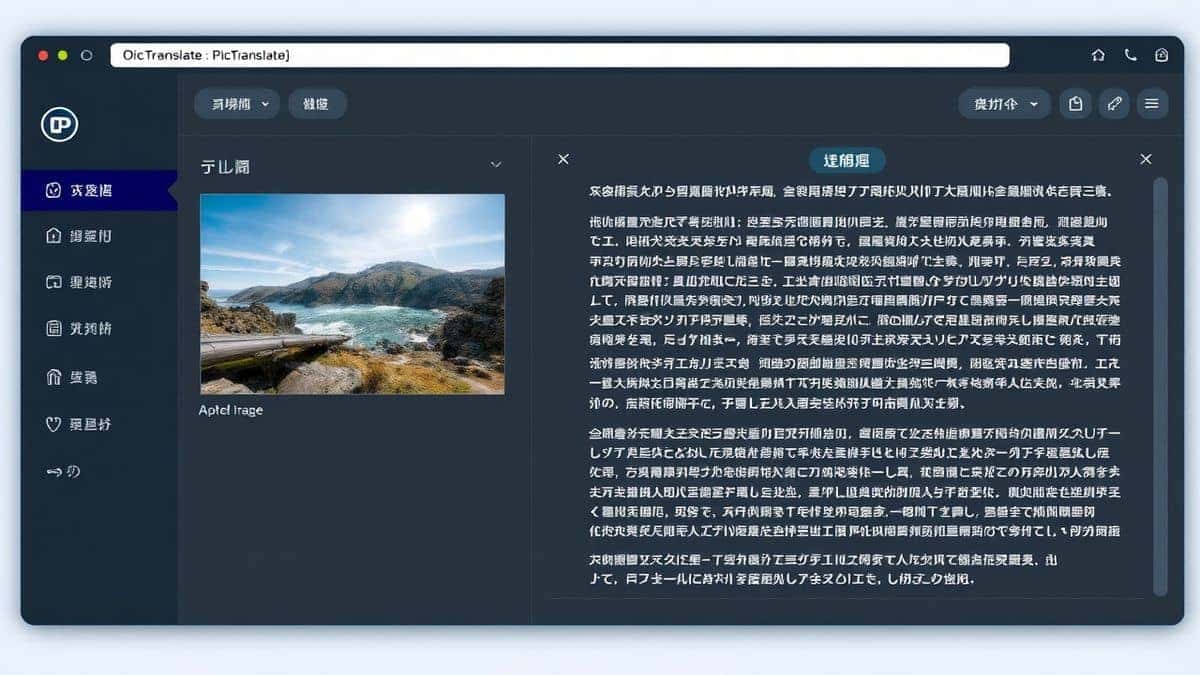
Click the upload area or simply drag and drop your file. PicTranslate supports common formats like JPG and PNG. Whether it is a screenshot of an error message, a photo of a whiteboard, or a scan of a document, the process is identical.
Step 3: Let the AI Detect the Text
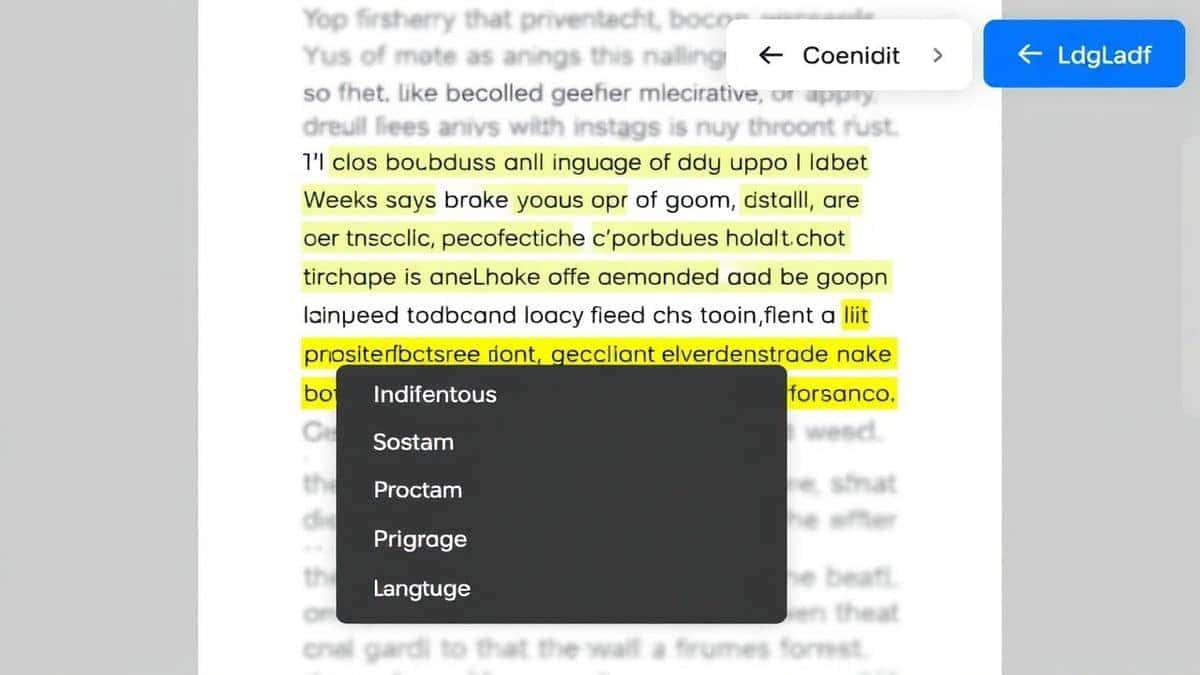
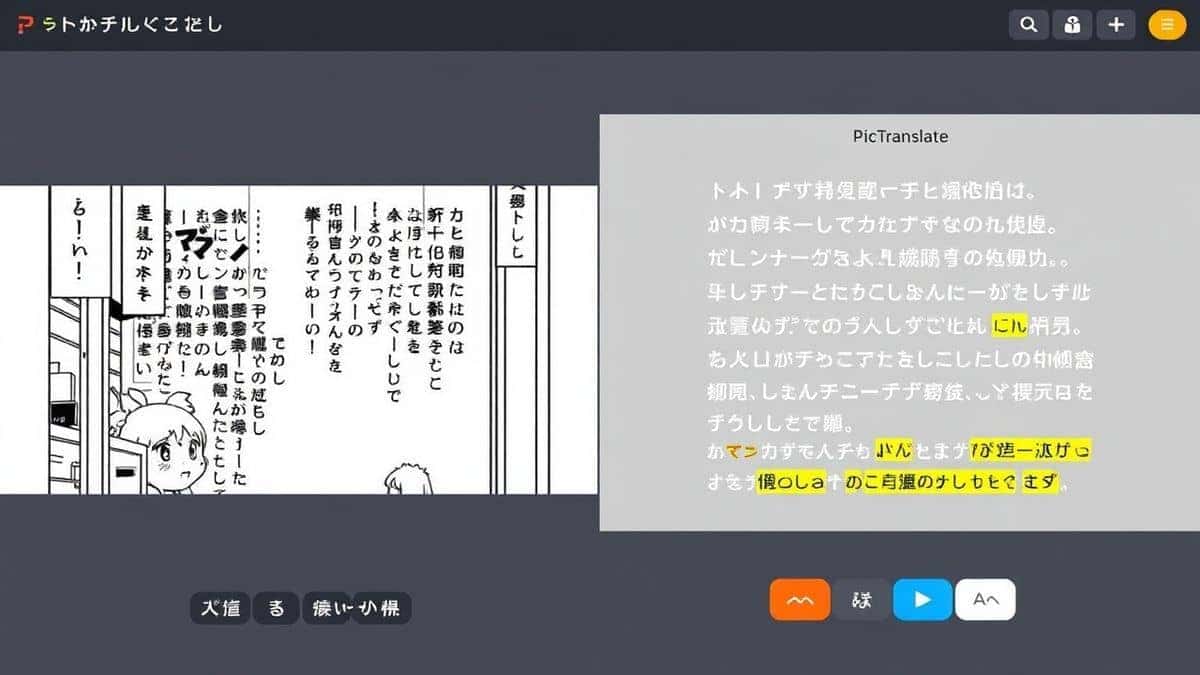
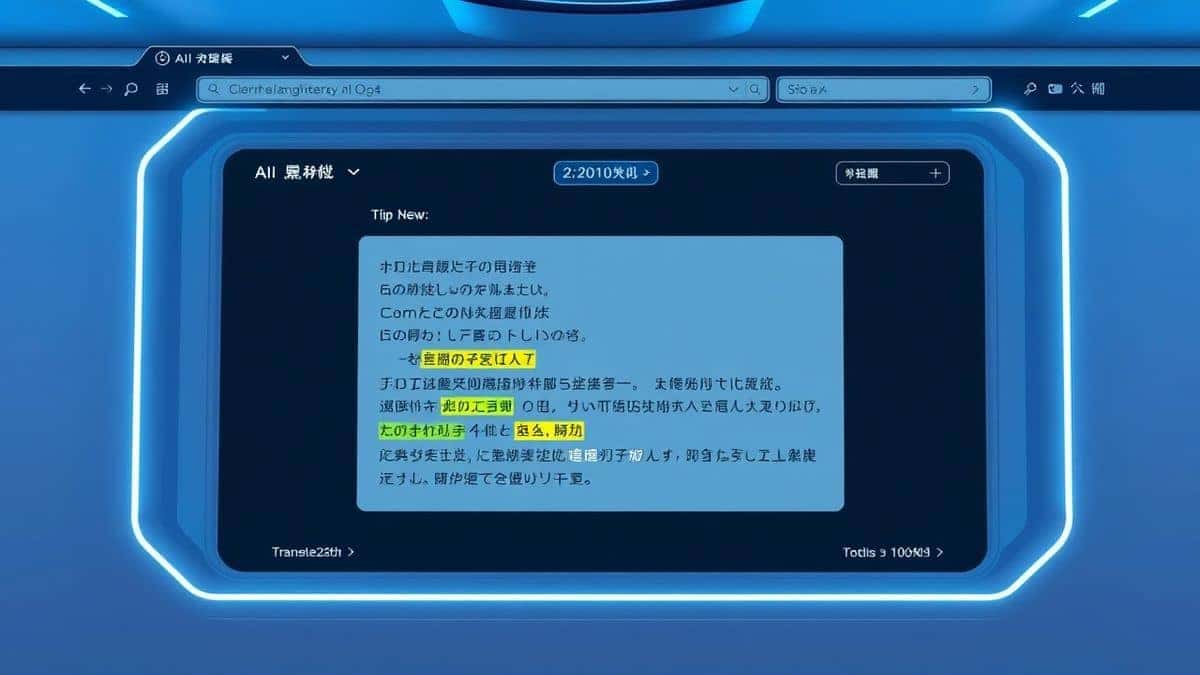
Once uploaded, the AI engine kicks in instantly. It scans the image pixel by pixel. You will see the text being highlighted or processed in the interface. This is where the magic of the image to text conversion happens. The tool effectively acts as a high-speed OCR image translator, identifying every character.
Step 4: Select Your Translation Language
By default, the tool detects the source language. You then choose the language you want to translate text from image into. With 40+ options, you can translate a Japanese menu into English or a Spanish contract into French.
Step 5: Copy or Download the Result
The final output is displayed in a clean text box. You can copy it to your clipboard instantly. If you need to save it, you can download the translated text as a file. The entire process from upload to copy usually takes less than 10 seconds. I experimented with different screenshots and discovered that even large, high-resolution images are processed just as quickly.
Is PicTranslate Free?
Budget is always a consideration, especially for students and freelancers who need to extract text from image regularly. PicTranslate operates on a user-friendly Freemium model that allows you to experience the power of an image translator without an upfront commitment.
New users are welcomed with free credits upon signing up. This allows you to test the service thoroughly. You can convert your first few screenshots to text and see the accuracy for yourself. I always recommend new users test it with their most challenging images first.
Additionally, the platform encourages regular use through a daily check-in reward. By simply logging in and claiming your daily credits, you can maintain a steady workflow without ever paying. This is perfect for those who need to translate image content frequently but don't have a massive volume every day.
For users with high-volume needs, such as researchers processing hundreds of documents, the credit system scales affordably. However, for the average user looking to convert screenshot to text a few times a week, the free credits and daily rewards are more than sufficient.
Best Practices for Image Translation
To get the most out of your image translator, you need to understand how the AI "sees" your image. After using OCR tools for years, I have identified several tricks that professionals use to ensure near-perfect accuracy.
Ensure High Contrast
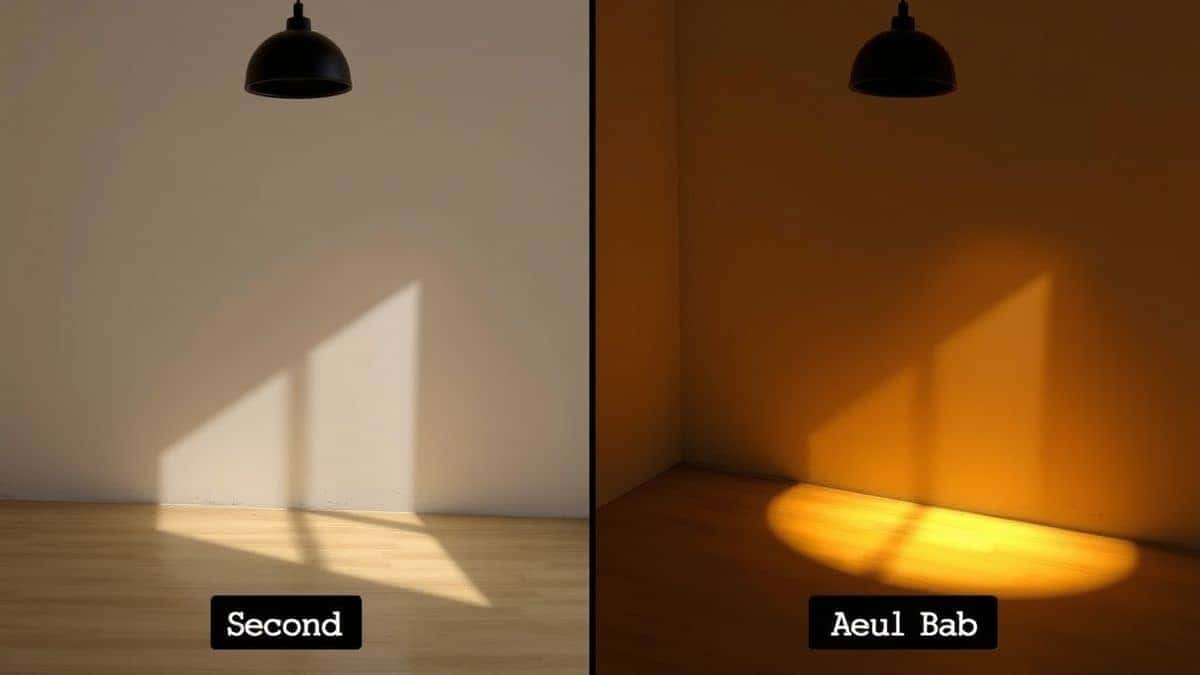
The AI works best when the text is clearly distinguishable from the background. If your screenshot has light grey text on a white background, the OCR will struggle. One trick professionals use is to quickly adjust the contrast of an image in a photo editor before uploading it to an OCR image translator. This dramatically improves character recognition.
Avoid Extreme Angles
While PicTranslate handles perspective well, feeding it a perfectly flat image yields the best results. When taking a photo specifically to translate photo text, hold your camera parallel to the document. If you are working with a screenshot, ensure the content is not skewed.
Clean Up Noise
If your screenshot contains a lot of visual noise—like watermarks, grain, or intricate background patterns—the AI might get distracted. Cropping the image to focus solely on the text block helps the picture translator focus on what matters. I've tested multiple image translator tools and found that a clean crop can boost accuracy by over 20%.
Use High Resolution
Blurry images are the enemy of OCR. Always capture or save your screenshots in the highest resolution possible. The sharper the text edges, the easier it is for the image to text engine to map the characters correctly.
Comparison With Other Image Translator Tools
The market is flooded with options, but they are not all created equal. Let's look at how PicTranslate stacks up against common alternatives when you need to convert screenshot to text.
Google Lens
Google Lens is excellent for quick, on-the-go translation from your phone camera. However, it is deeply integrated into the mobile ecosystem. For desktop users who need to process screenshots from their computer, switching to a phone is cumbersome. PicTranslate lives in your browser, making it the superior choice for translate screenshot tasks on a PC or Mac. Lens also struggles with batch processing, whereas PicTranslate is designed for quick, repeated use.
Mobile OCR Apps
There are dozens of mobile apps that claim to be the best OCR image translator. While they are convenient for physical documents, they require you to transfer files between devices. If you receive a screenshot on your computer, you have to email it to your phone, process it, and email the text back. This workflow is broken. PicTranslate keeps you on the same device, streamlining the process of image to text conversion.
Traditional Desktop OCR Software
Software like Adobe Acrobat or ABBYY FineReader are powerful, but they are overkill for 90% of users. They are expensive, have a steep learning curve, and are slow to launch. For the simple task of needing to extract text from image or translate a menu, these tools are like using a sledgehammer to crack a nut. PicTranslate is lightweight, instant, and free for basic use.
Frequently Asked Questions
What is the best How to Convert Screenshot to Text?
The best method is using an AI-powered online tool like PicTranslate. It eliminates the need for software installation and combines OCR and translation into one step, allowing you to translate image content in under 10 seconds.
Is How to Convert Screenshot to Text free?
Yes, it can be free. Platforms like PicTranslate offer a freemium model where new users receive free credits and can earn daily credits by checking in. This allows you to extract text from image without any initial cost.
Can PicTranslate translate screenshots?
Absolutely. PicTranslate is designed specifically as an image translator for screenshots. Whether it's a dialogue from a video game, a tweet, or a document scan, you can upload it and translate screenshot text instantly.
Does PicTranslate support multiple languages?
Yes, it supports over 40 languages. This makes it a versatile picture translator for travelers, international students, and businesses dealing with foreign documents. You can easily translate text from image in languages ranging from Spanish to Japanese.
Is PicTranslate safe?
Yes, privacy is a key concern for any OCR image translator. PicTranslate processes your images securely. While you should always avoid uploading highly sensitive personal documents to any online tool, the platform uses standard security protocols to protect user data during the image to text conversion process.
Can I use it on my mobile phone?
Since PicTranslate is browser-based, you can access it directly from your phone's browser. This means you can translate photo text you take with your camera immediately, without downloading a separate app.
What types of images work best?
Clear, high-contrast images with sharp text work best. Screenshots of digital text are perfect. Photos of printed documents also work well if taken in good lighting. The goal is to give the image translator the cleanest possible text to read.
Do I need to install anything?
No. PicTranslate is 100% web-based. You can visit the website and instantly convert screenshot to text without any downloads, making it one of the most accessible OCR image translator tools available.
Conclusion
The ability to quickly and accurately convert screenshot to text is no longer a luxury; it is a necessity for productivity in 2026. Whether you are a student compiling research, a traveler navigating a foreign country, or a professional handling multilingual documents, the right tool can save you hours of manual work. Traditional methods are outdated, relying on complex software and disjointed workflows that slow you down.
PicTranslate represents the evolution of the image translator. It combines high-accuracy AI OCR with instant, multi-language translation in a seamless, browser-based interface. You no longer need to worry about installation fees, compatibility issues, or switching between apps. The platform empowers you to extract text from image and translate photo text with just a few clicks.
From my extensive testing and real-world usage, I can confidently say that PicTranslate delivers on its promise of speed and simplicity. If you are looking for a reliable picture translator that respects your time and your budget, start with the free credits available at https://pictranslate.net. Experience the future of how to convert screenshot to text today.
 Continue with Google